BOLD
Brian's Opinionated Linux Desktop
Made for agentic developers who want to get
the most out of their Framework 13 Pro.
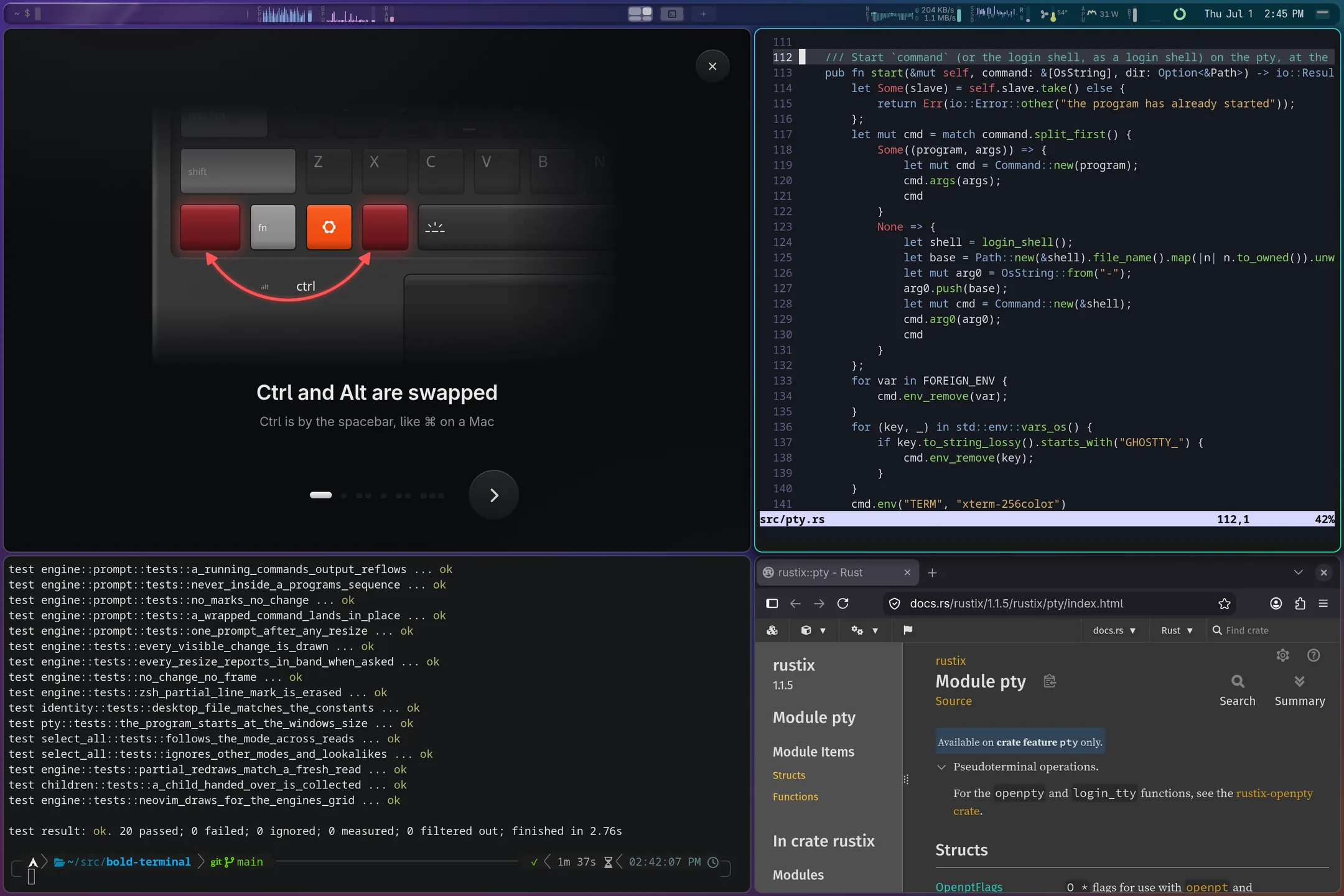
The perfect software, for the perfect hardware.
Hide yo ThinkPad, hide yo XPS, and hide yo MacBook
cause they deployin' err'thing out here.
Install
-
Fresh Install with a USB stick
For a new machine, or one to erase. Boot the stick and answer one form, and it installs Arch Linux and BOLD by itself, encrypted by default.
Three steps Download the ISO- Write the ISO to a USB stick, with any USB writer.
- Start the machine from it, with Secure Boot off.
- Answer the form, choose the disk, and wait.
Erases the whole disk.
-
Guided Install with Claude Code
From another computer, Claude installs BOLD over SSH. Boot the new machine from Arch's own USB stick (Claude can write it for you) and type three commands there. Claude asks its questions once, does the rest, then removes its own way in.
On your computerclaude plugin marketplace add briiian/bold && claude plugin install bold@bold && claude /bold:installErases the whole disk. The new machine: a 64-bit UEFI PC on the same network.
-
Arch Linux Upgrade
Already running Arch? On a base install, as your normal user with sudo, network access and git, clone BOLD and run its installer. Preview it first with
--dry-run.On the Arch machinegit clone https://github.com/briiian/bold.git \ ~/.local/share/bold cd ~/.local/share/bold ./install.sh --dry-run # preview ./install.shSafe to run again after pulling changes.
Tutorial
Baked-in opinions make BOLD intuitive, and the learning curve is small.
Ctrl and Alt are swapped

Ctrl is by the spacebar, like ⌘ on a Mac
No more primary clipboard

Selecting copies nothing, a middle-click pastes nothing
Super targets the system, and Ctrl targets the active app
Tap Super for your app launcher

Type to search, Enter to open
The command bar

Type
bold: everything the system does
Top shelf agent integration

Any other command runs in a terminal
Tiling windows

Desktops side by side, a fresh one at the end

Every window in the bar: click one to go there

Hold Super and drag to move a window

All features
With daily releases, new features come in quick.
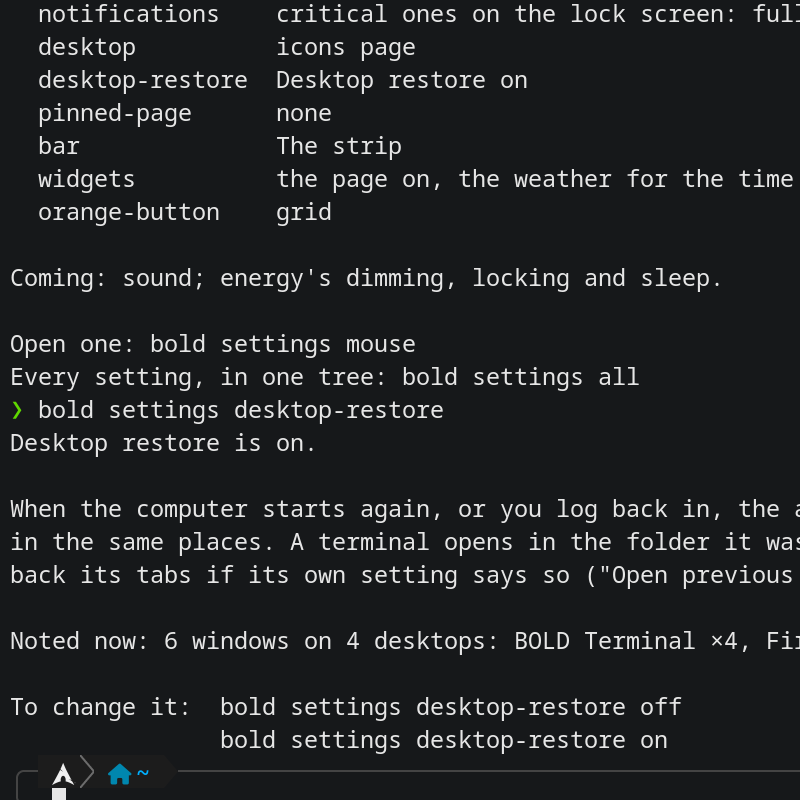 After a restart, a logout, even a crash or a power cut, the apps that were open reopen on the same desktops, tiled the same way: a terminal in its folder, Firefox with its windows and tabs if you've ticked its own setting. On by default. Restarting, shutting down and logging out close your apps first, for a moment at most.
bold settings desktop-restore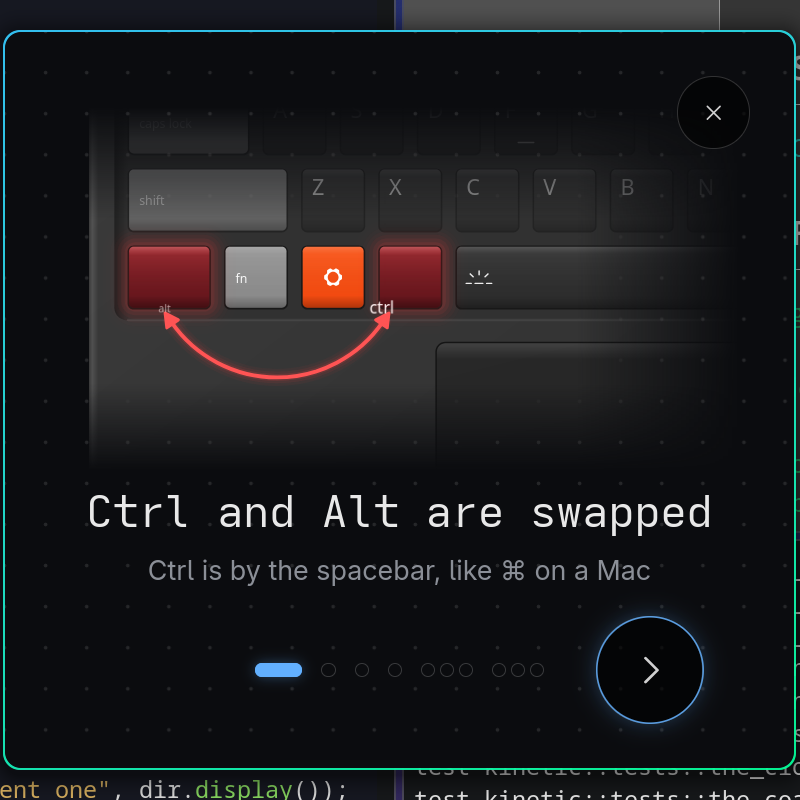 Each step is one to three looping pictures and a few words: Ctrl and Alt swapped, one clipboard, Super for the system, the launcher, the command bar and tiling. They're drawn from the 13 Pro itself, its keyboard as printed. Until you've opened it once, the command bar suggests it.
bold tutorial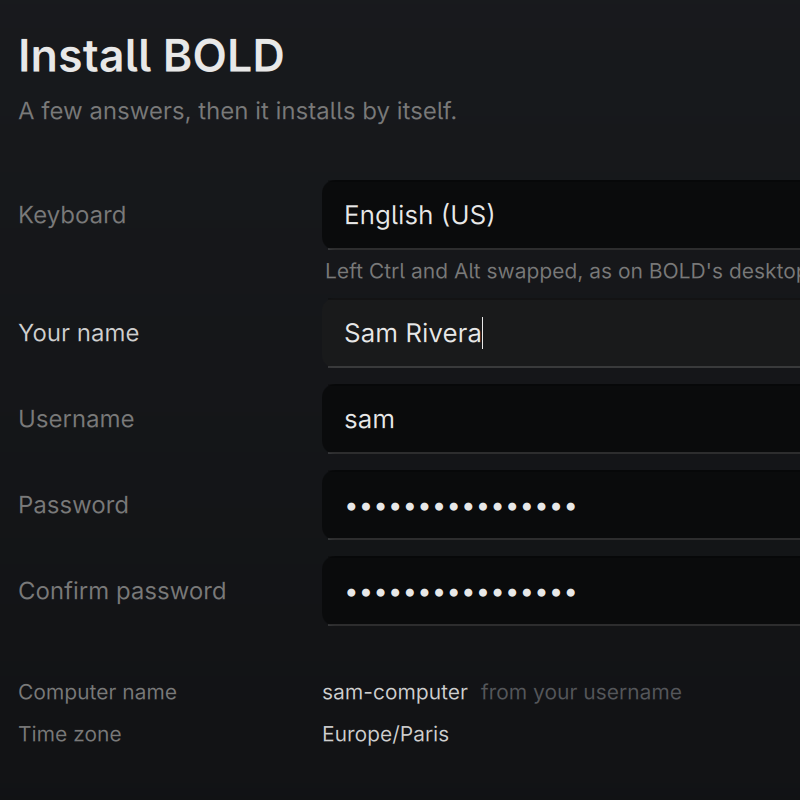 Boot the stick and the first screen is already the questions: the computer's name, yours, a password. Pick the disk, encrypted unless you say otherwise, and it installs Arch and BOLD in a few minutes, showing the tutorial's pictures while you wait. Restart, type your password to open the disk, and BOLD's login screen is there.
- Start the new machine from Arch's USB stick and type three commands there. Claude asks every question at once and does the whole install with BOLD's own installer. Your passwords are only ever typed by you, and at the end Claude removes its own way in.
claude /bold:install 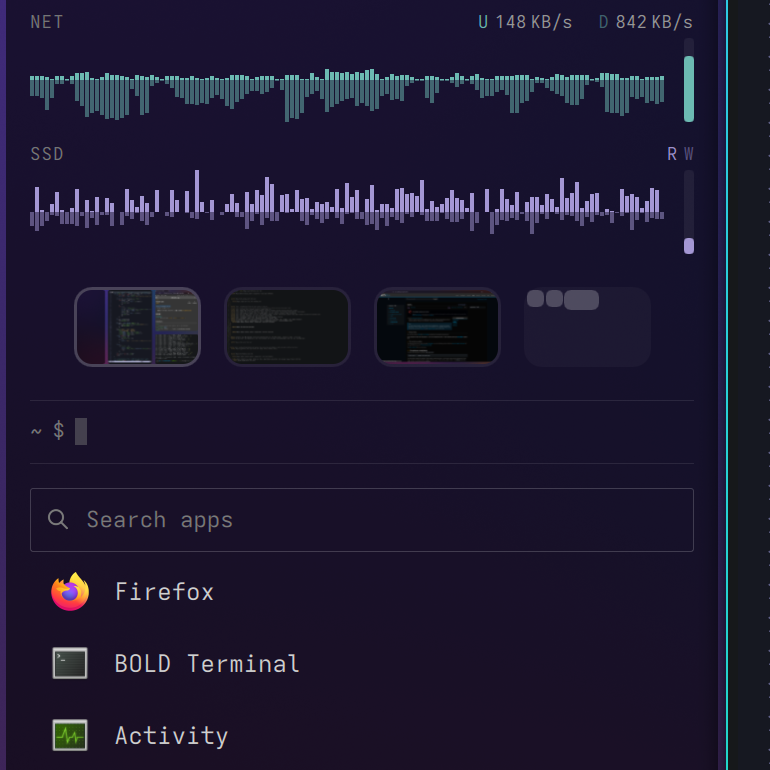 A button in the bar's top-right corner turns the bar into a sidebar a quarter of the screen wide, freeing the top of every screen. It holds the clock, the battery, live desktops, a row of graph for each of CPU, GPU, memory, network and disk, the command bar and the app launcher. Windows tile in the rest of the desktop.
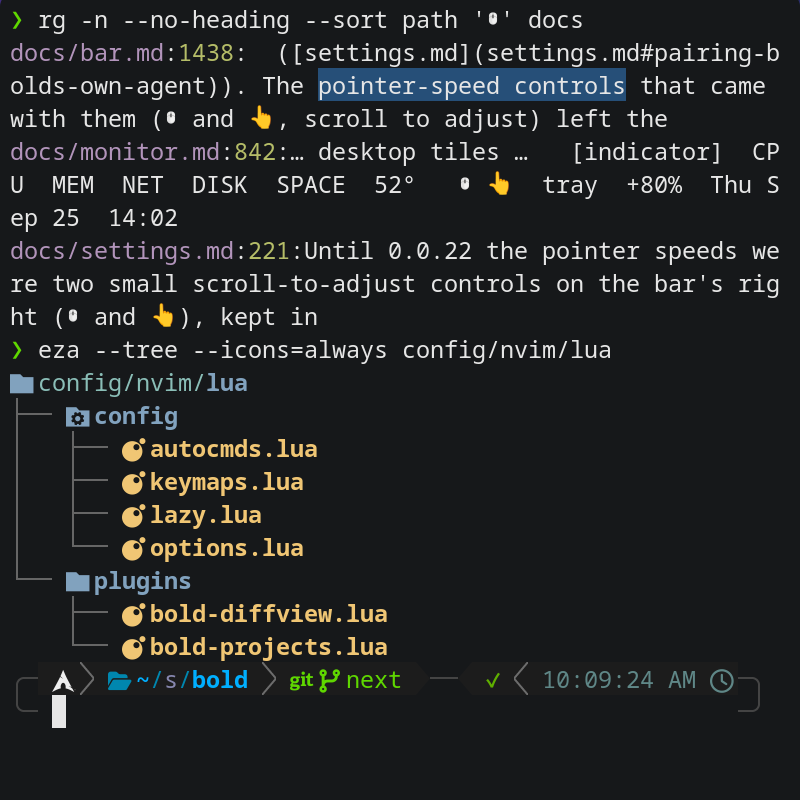 Ctrl+C copies what you selected and Ctrl+V pastes, whatever runs in it; the key labelled Ctrl + C interrupts. It's crisp at the 13 Pro's scale, with exact colours, emoji and box drawing. Selecting copies nothing, and a middle-click never pastes.
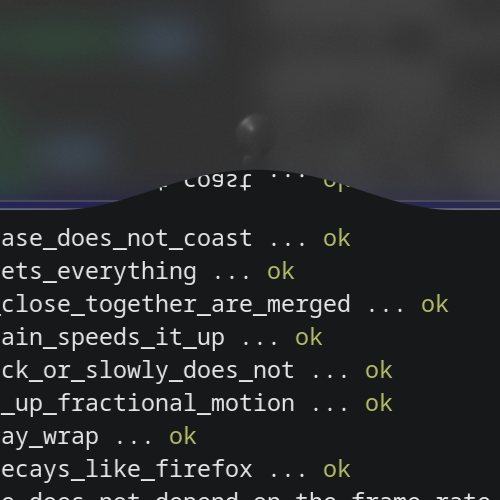 In actions mode every window has four mitosis buttons. Click one and a drop bulges out of that side, pinches off into a new window of the same app and settles in with a wobble. The copy starts fresh.
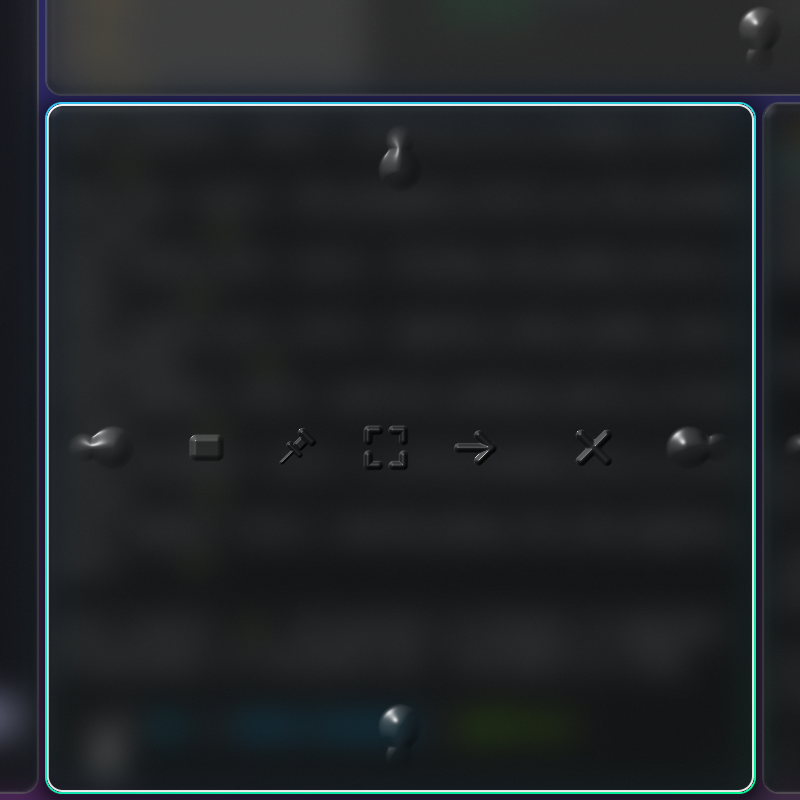 Tap the top right orange button (the 13 Pro's F12) and frosted glass covers every window, with buttons to act on it. The arrows walk the windows, Shift+arrows take one along, the wheel moves through the desktops, and nothing you type reaches the apps underneath. Tap the key again, or press Escape, to leave.the top right orange button
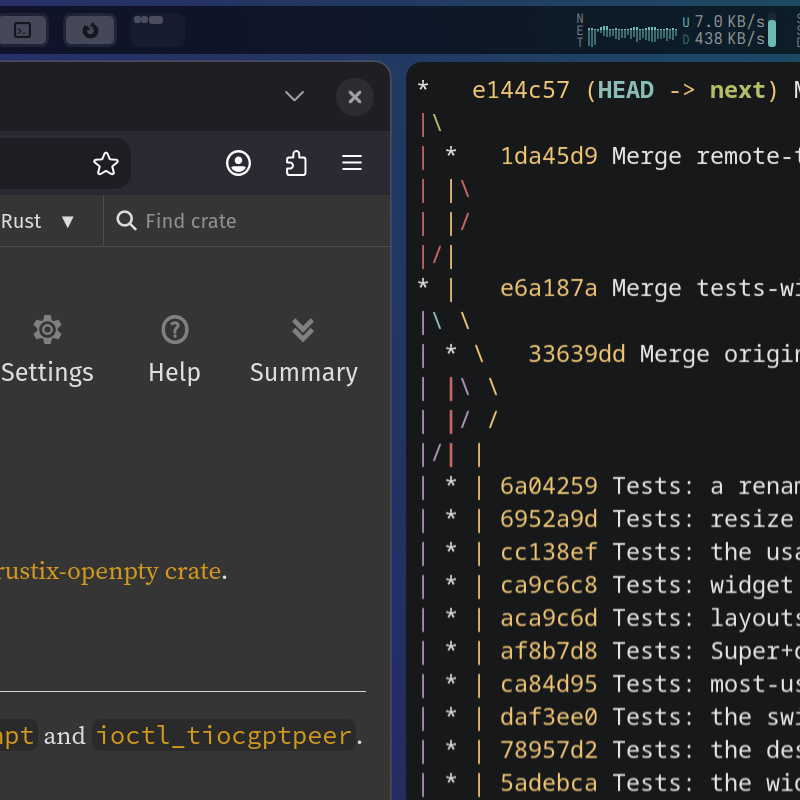
 One tile per desktop, each window drawn in its real position as a shape of light, a big one wearing its app's logo. Click a tile or a window to go there, and the pointer stays where it is. The wheel over it moves through the desktops. It's the app switcher, window list and workspace switcher in one, and it stays exactly in the middle of the screen.
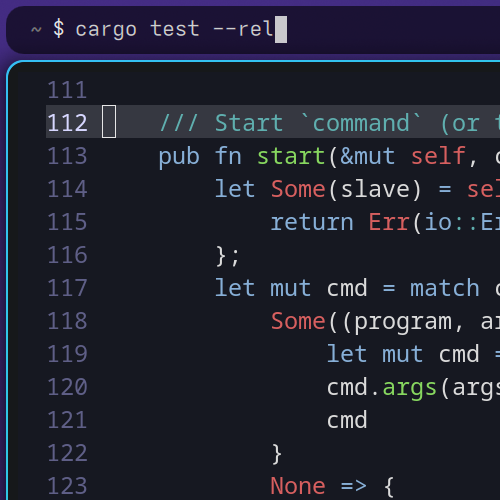 The top left of the bar is a text field: a shell command opens in a terminal, running. It has the keyboard when you log in and whenever you unlock, so you can type straight away. Esc gives the keyboard back. It isn't an app launcher.
 Swipe three fingers and the desktop holds back as they pull, then lets go well across the touchpad and the magnet pulls it through. A quick flick doesn't slip past. How strong the pullback is, from 1 to 10, is a pad in
bold settings touchpad. At the row's ends it stretches a little and comes back.three fingers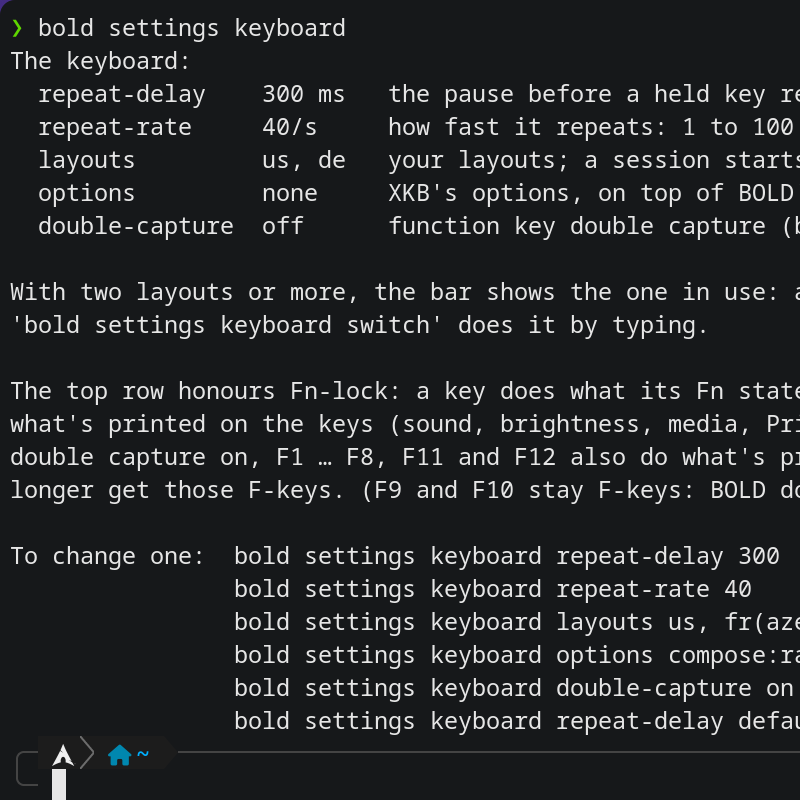
repeat-delay 300andrepeat-rate 40set how soon and how fast a held key repeats.layouts us, fr(azerty)gives you several layouts, and while there are two or more the bar shows the one in use: click to switch to the next, or scroll through them.options compose:raltadds XKB's options on top of BOLD's Ctrl/Alt swap. Each applies at once.bold settings keyboard- A third mode beside the strip and the sidebar. Each arrives with its desktop, in step with the slide. Right-click the bar's button for Strip, Sidebar or Auto, or use
bold settings bar.bold settings bar auto - Each time its Firefox starts, BOLD copies in your own Firefox's cookies for the page's site and the sites its sign-in goes through. Nothing else is taken, and your profile is only read, never changed.
bold settings pinned-page share-signin offturns it off. - Up brings back the last commands you ran from the command bar for the target showing, older ones with each press; Down comes back. With something typed, Up goes only through commands that start with it. Right arrow completes at the end of the text, as Tab does. A command typed with a space in front isn't remembered.
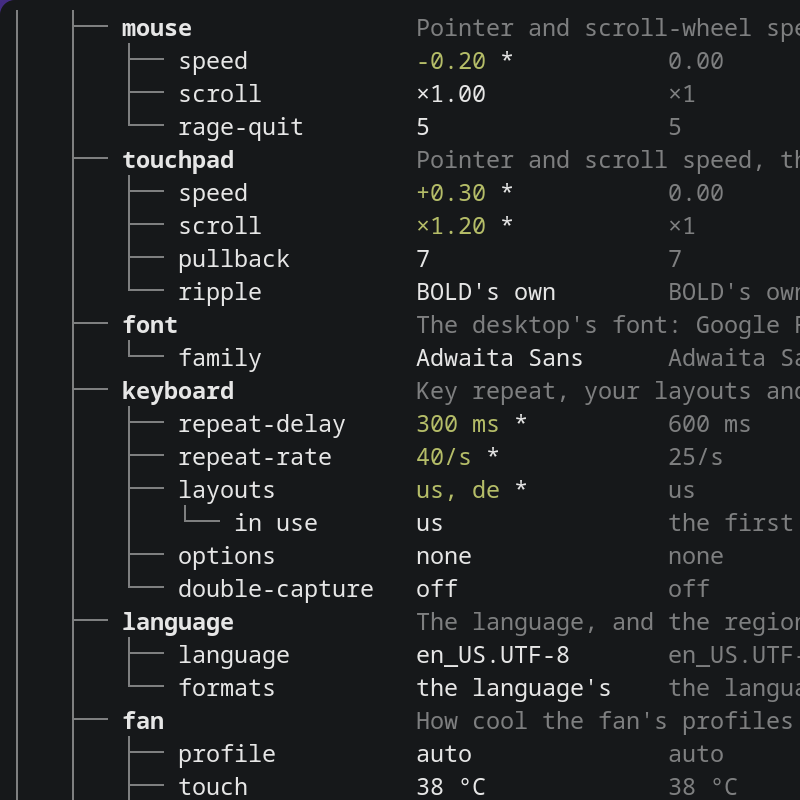
bold settings allprints every part ofbold settingsand every setting in it, nested as a tree, with the ones you've set marked. A setting's place in the tree is what you type to change it, likebold settings mouse speed 0.3.bold settings all- An image you copy (Firefox's Copy Image, a screenshot) pastes into Claude Code with Ctrl+V, in whatever format the page used. Text pastes exactly as before.Ctrl+V
- Each press of the brightness keys is one of 20 steps, 5% each, even to the eye from the bottom to the top, and the level shows the step.
- On the Framework AMD Ryzen AI 300 board, the silent digital mic the firmware offers is kept off, so the laptop's real mic is the one apps get, and the speakers are kept awake so they don't click when a sound starts. Nothing changes on other machines.
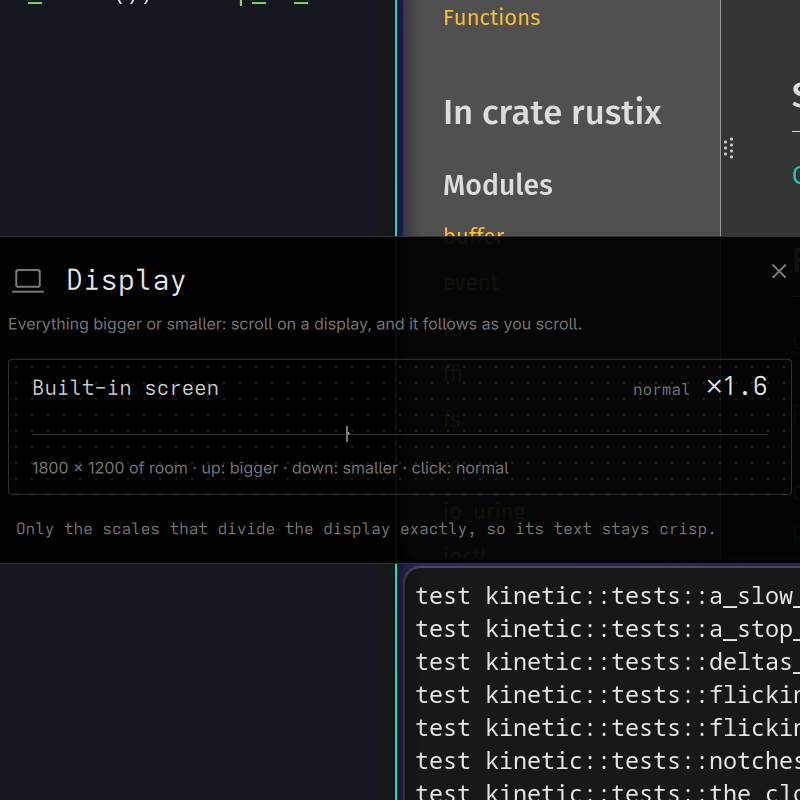 A window with a pad for each display: scroll up and everything gets bigger, down and it gets smaller, the display following as you scroll, only through the scales that divide the screen exactly. A click puts it back.
bold settings display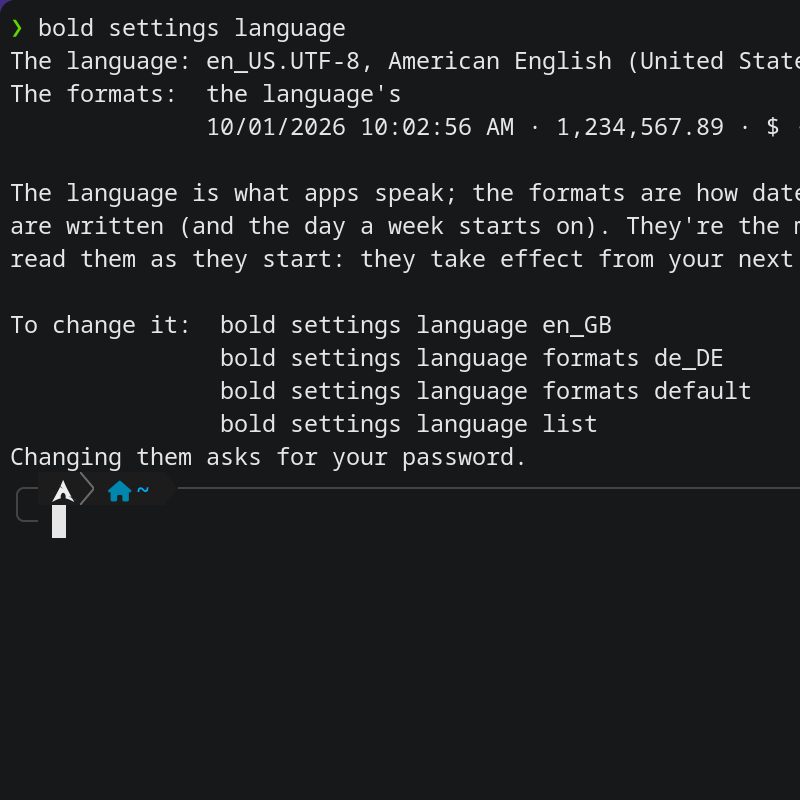
bold settings language en_GBsets the language, andformats de_DEsets how dates and times, numbers, money and units are written, and the day a week starts on.listshows what's available. They're the machine's, so the login screen follows too, from your next login.bold settings language- Where swap is compressed memory (zram, as BOLD's installer sets it up), the kernel's zswap is turned off so pages aren't compressed a second time on their way there.
- An update ends with "Restart to finish" when something the computer loads only as it starts has changed, naming it: a new kernel, new firmware, the login screen's setup. Otherwise it asks you to log out only when apps were updated, and when everything already applies it simply ends.
- When a desktop goes, a new one pushed in and left empty or one you emptied, the desktops after it take the numbers down one a moment later, their windows where they were.
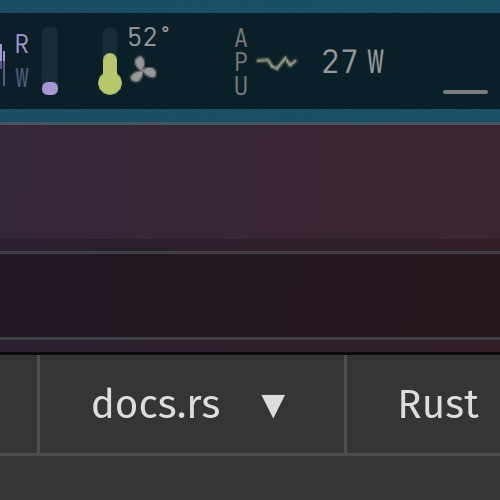 The fan beside the temperature is its three blades, turning at one of three speeds with the real fan and still while it rests. The temperature is a thin thermometer that goes from green to red as the chip nears its limit. Its card says what holds the fan: Auto, a profile or a boost.
- In the sidebar, each desktop's tile shows its wallpaper and every window's real picture, rounded into the tile's rim of light. The desktop you're on follows along once a second; the others look as you left them. Nothing is captured while the sidebar is off screen.
bold settings bar tiles offturns the pictures off.bold settings bar tiles - Double-click the gap between two windows and the sides glide to half and half. With more windows, only the split that gap belongs to changes. A single click and a drag still resize as before.
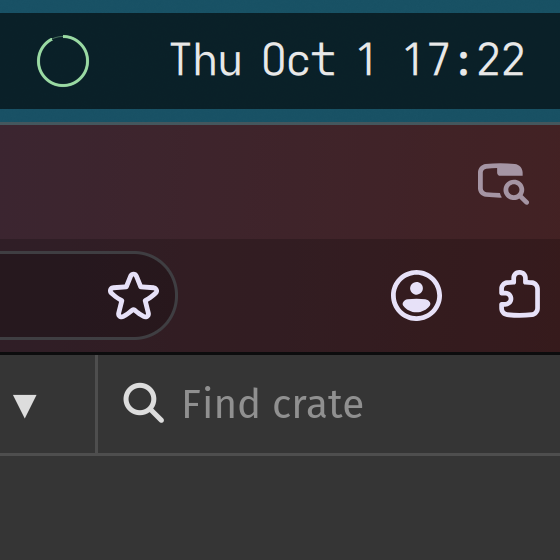 The charge sweeps round a little ring from the top, closed all the way round at your charge limit. Rest the pointer on it for a card with the whole story: time to full or left, the watts, the battery's health and the last 8 hours. It turns amber, then coral, when low.
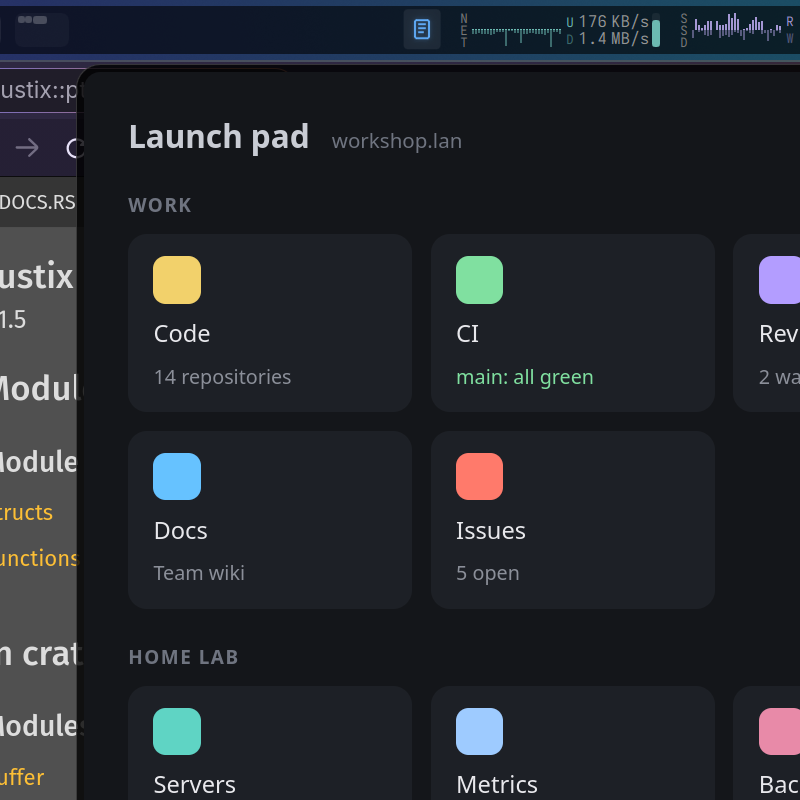 A button in the bar shows your page on a card under it; a click beside it, or Escape, puts it away. It's a real Firefox in a profile of its own. Links open in your default browser, and the page stays where it is.
bold settings pinned-page https://…- In the launcher a Super tap opens and in the sidebar's, each app is a plain row in the clock's monospace face, the chosen one lit blue. Dragging an app lifts its row out.
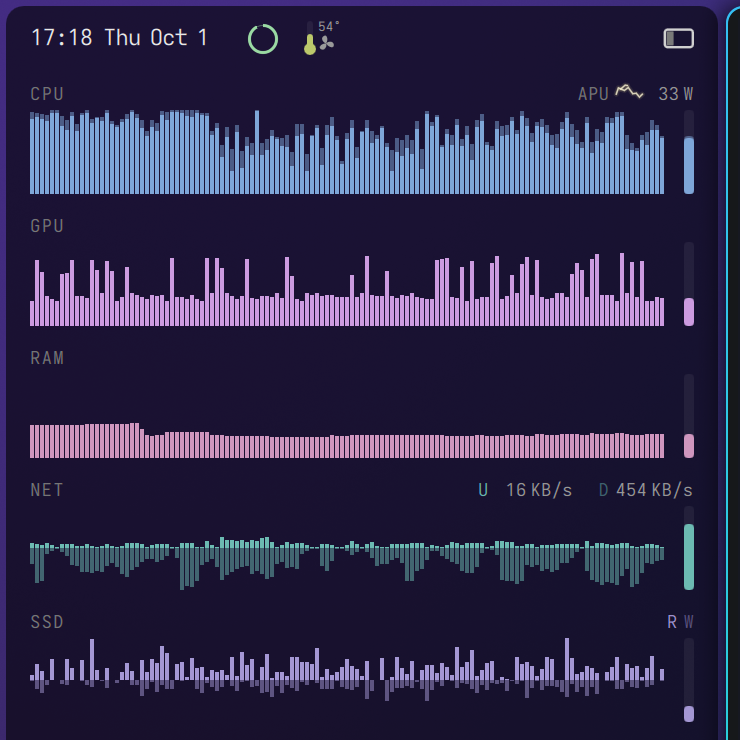 Each graph is three times as tall as on the strip and shows two minutes, with what it is now at its right end. Rest the pointer on one for its details beside the sidebar. CPU and GPU sit on a square-root scale, so a quiet machine still draws a low hill.
- The load (CPU, GPU, RAM) sits just left of the switcher, the flow (network, disks) just right of it, and the rest beside the battery. Nothing moves as desktops come and go, so the switcher stays in the middle with open bar either side. Twelve desktops fit at full size on the 13 Pro.
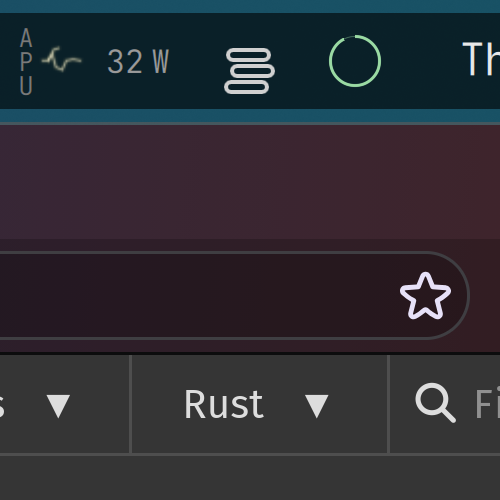 No boxes at the top right: the bar is the notification server. Each new one drops onto a small stack beside the battery, and a toast rises out of it for a few seconds. Click the stack for all of them, on a card hanging from the bar: open one, use its buttons, dismiss it or clear them all. In the sidebar they're a list under the app list.
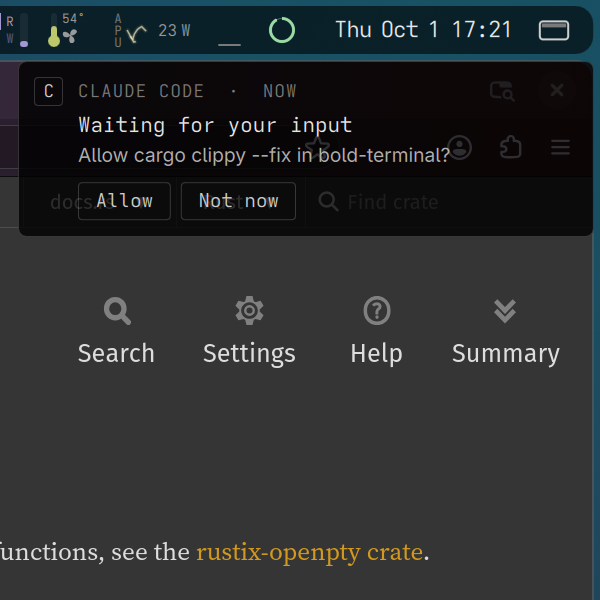 It rises out of the stack, waits while the pointer is on it, then settles back. Three at most at once, and none over a full-screen window. A critical one, like a low battery, stays until you deal with it.
- Super+Left/Right, Super+scroll and a click in the switcher all slide the desktops the way you're going, with the three-finger swipe's own motion: there in a fifth of a second, clicking into place. A jump of several desktops is one slide.
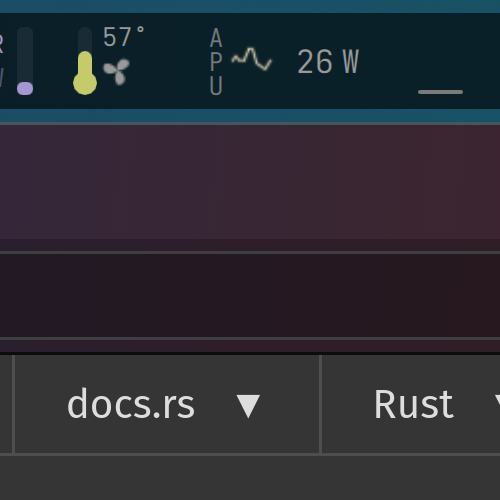 The chip's power shows in watts, with a tiny arc beside it. Near idle it barely wobbles, dim and slow; around 20 W it's jagged and jumpy; near the chip's top it swings the bar's whole height and throws forks. On the bar, in the sidebar and in the stats' card.
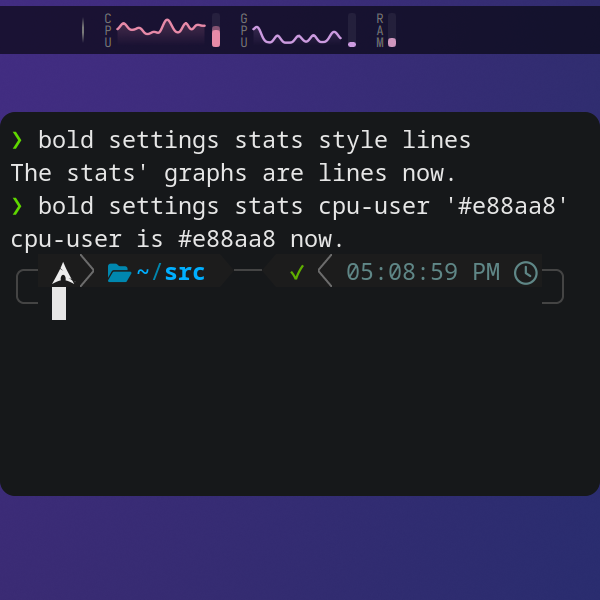
bold settings stats style linesdraws smooth lines instead of bars, andbold settings stats net-up #e88aa8gives a series a colour of your own: the CPU's apps and kernel time, the GPU, memory, the network's up and down, the disks.defaultbrings BOLD's back.bold settings stats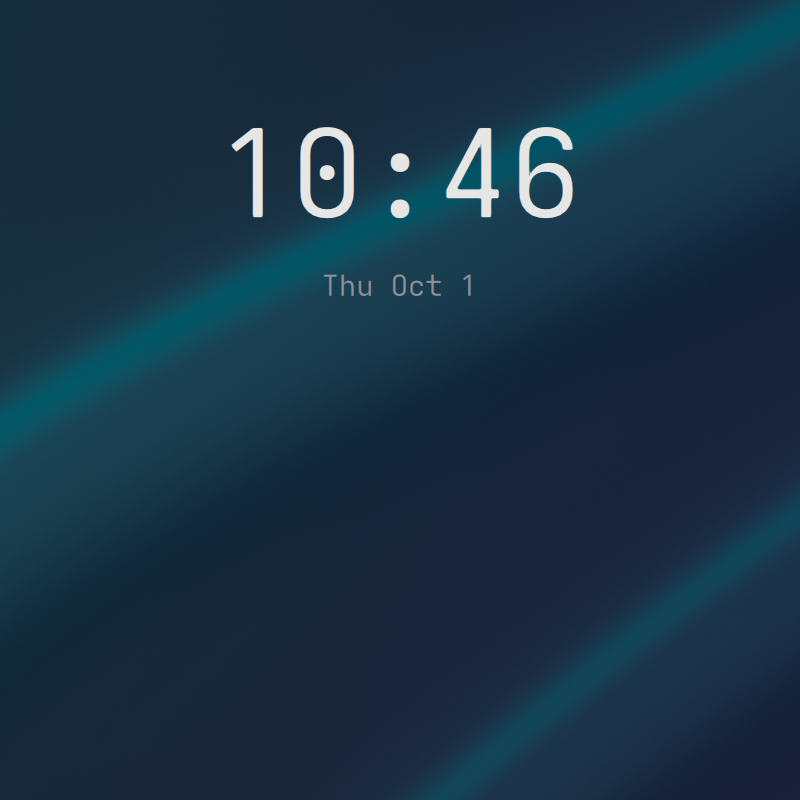
bold settings lock background ~/Pictures/mountains.jpgsets the picture behind the lock and login screens. The default is a photo of maple leaves by Annie Spratt, credited small at the bottom right.bold settings lock background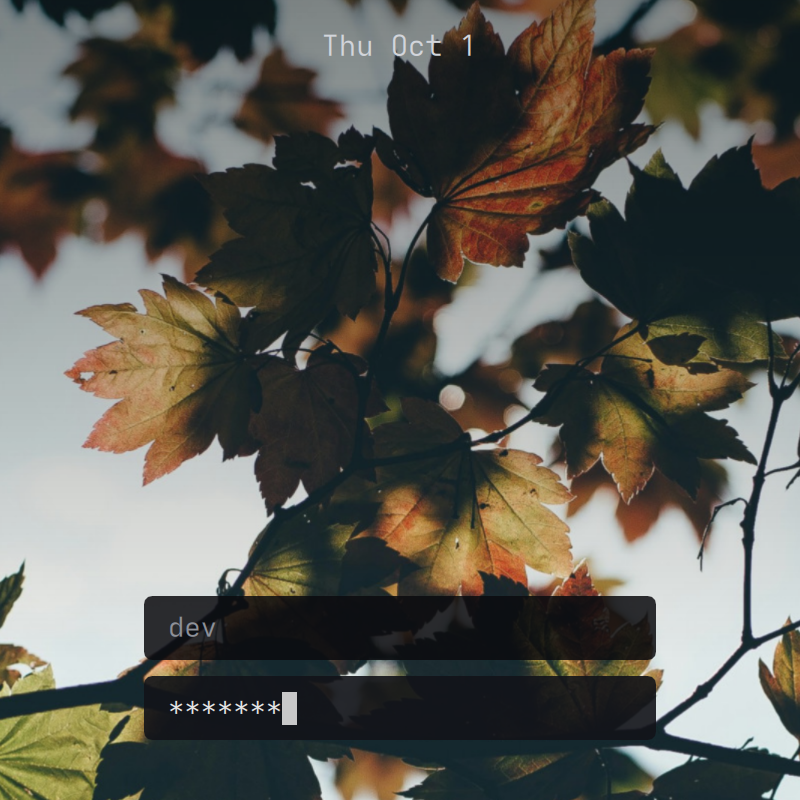 Lock the laptop and you're at the login screen: a picture, the time and date, your name, and a password typed in monospace behind a blinking block cursor. No glass, no blur. A wrong password shakes; restart and shut down wait at the bottom left. If it ever fails, the older lock and login screens take over.Super+L
- BOLD sets up an encrypted disk with Btrfs and snapshots by itself. The installer also swaps in compressed memory on small machines.
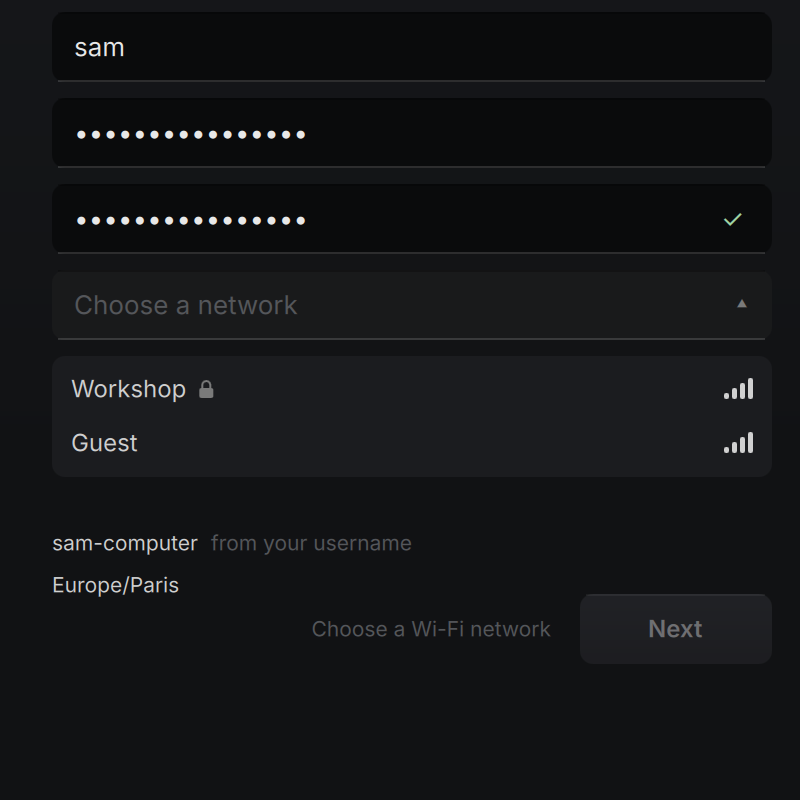 If there's no cable, the form lists the networks in reach, strongest first, with a padlock on secured ones. The network is joined on Next, and the installed system keeps it.
- Once it's online, the time zone is guessed from the network, and a click edits it: type a city, pick from the list. The computer's name and your username are suggested as you type your name.
- Before a release goes out, an automated test boots its installer in a fresh virtual machine and installs Arch and BOLD end to end, including over Wi-Fi and on a PC that starts with a BIOS instead of UEFI.
- On the login screen, a click asks first, naming anyone still logged in, and only yes does it.
- Carrying a window with Super+drag, shake it hard left and right and it's gone, no × needed. It closes like any close, so an app with unsaved work can still ask first. How hard a shake it takes is yours, from 1 to 10, or off.Super+drag, and shake
- The tile lifts out of the row, the others slide aside, and where you let go the desktop lands with all its windows, tiled exactly as they were. Escape, or letting go where it started, changes nothing.
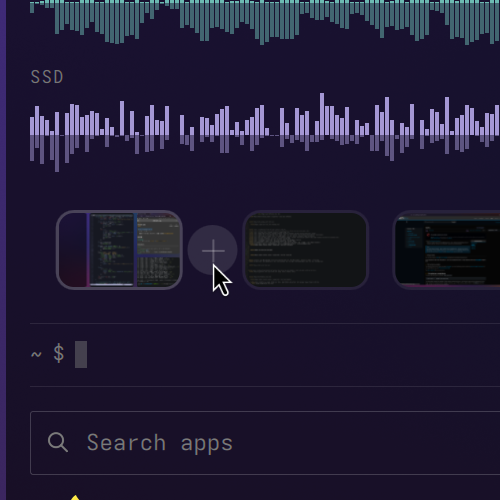 Rest the pointer in the gap between two tiles and a dot grows into a small button with a plus. Click it and a new, empty desktop goes in right there, the ones after it moving along, and you're on it.
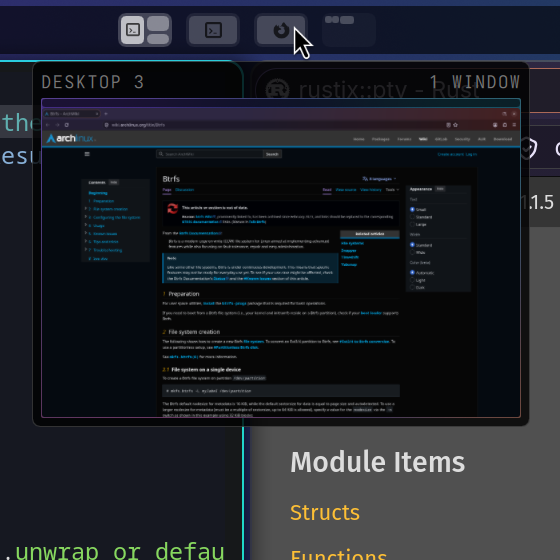 After a moment a card grows out of the tile, showing that desktop live at a readable size: a terminal's text, a web page, btop's graphs moving. Move along the tiles and the desktops slide through it; click the card to go to the window you clicked.
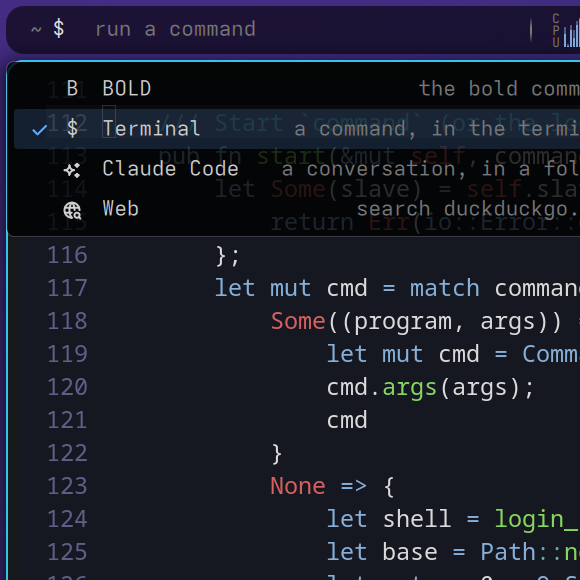 Right-click the sign at the prompt's start for every target: the shell (
$), BOLD (B), Claude Code (✳) and the Web (⌕). The one you choose stays chosen on every monitor. Your own go one line each in~/.config/bold/targets: a sign, a name and a command, with{}where your text goes.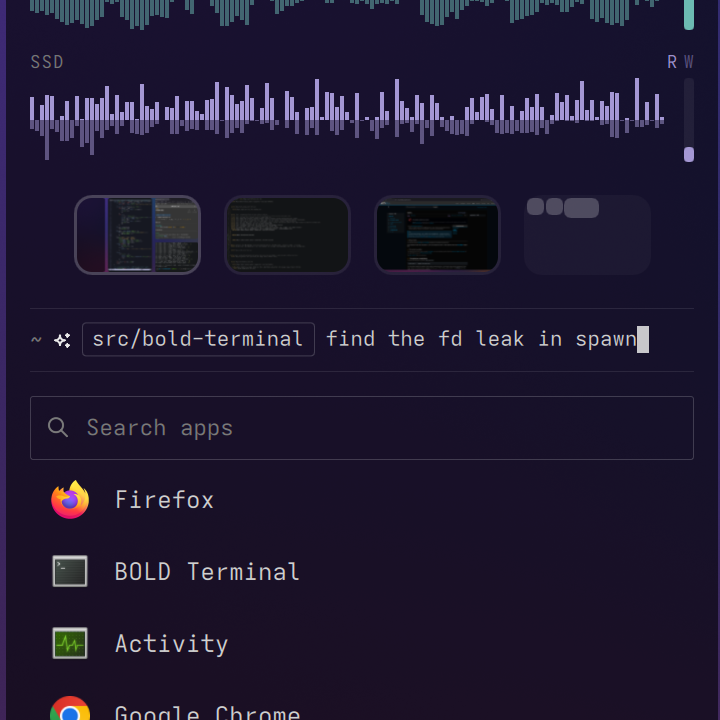 With the Claude Code target, type the folder first: a list opens as you type, the folders you use most (and most lately) first. Tab makes it a chip, and everything after it is the prompt, exactly as typed, no quotes needed.
- Type a search and it runs in your default browser, or type an address (
archlinux.org/news,localhost:3000) and it opens. Another search engine is one line in your targets. - The command bar,
bold update, the launcher's terminal apps, Super+Q and any app that asks for a terminal open BOLD Terminal. Ghostty stays installed, one line in~/.config/xdg-terminals.listaway from being your default. 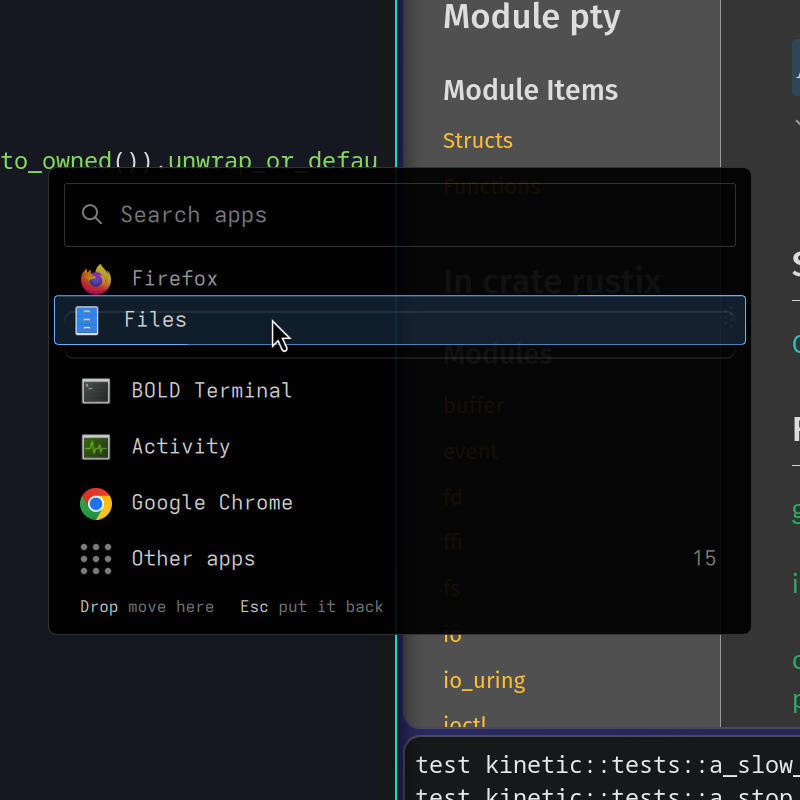 With nothing typed, press on a top-level app and drag it to its place. Drag it onto Other apps to take it out of the top level. Escape puts it back, and a plain click still opens the app.
- Ctrl+A at the shell's prompt selects every line of the command being typed, never the scrollback. Backspace erases it, typing replaces it, Ctrl+C copies it. The key labelled Ctrl + A still goes to the start of the line.Ctrl+A
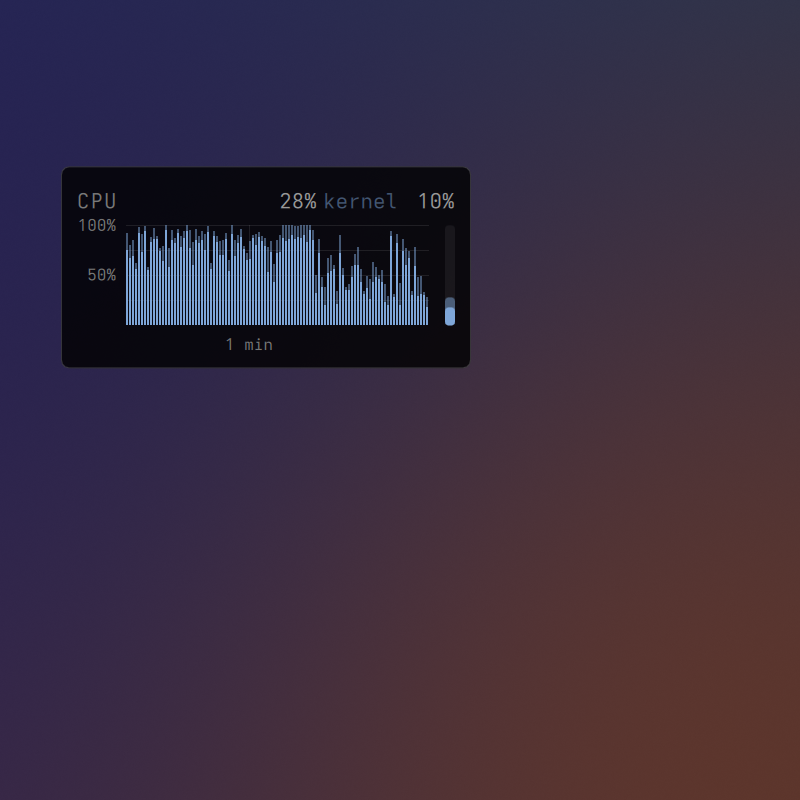 Nebula (violet, teal and rose) is the default, dusk is a sky after sunset, and silk is dark with folds of light. Set one by name;
classicbrings back the old plain blue.bold wallpaper silk- Right-click the temperature for the fan's menu: Auto, Cool (44 °C), Cool to the touch (38 °C, where the keyboard and the hinge stay cool) and the boosts. A profile uses the least fan that holds its temperature, and a burst of work doesn't spin it up and down. Your choice survives sleep and restarts.
bold settings fan touch 38 - Type
bold powerand pick one: it happens at once, with no terminal and no second click. It never cuts anything off: while an update is installing it waits, and when an app holds a restart off, the command bar says which. Apps are asked to close first, so a restart doesn't sit waiting on them.bold power bold settings eggs on, and BOLD has a few surprises. That's all it says.bold settings eggs on- Search, Other apps, Ctrl+D, Page Up and Down and the placement buttons all work there. Its search takes the keyboard only when you click it, and opening an app gives the keyboard back, so the app opens beside the window you were in.
- A tiled window moves a step that way, and at the desktop's edge carries on to the next desktop. A floating one joins the tiling as a full-height column or a full-width row, the others making room. The window keeps the keyboard, and the pointer stays put.Super+Ctrl+arrows
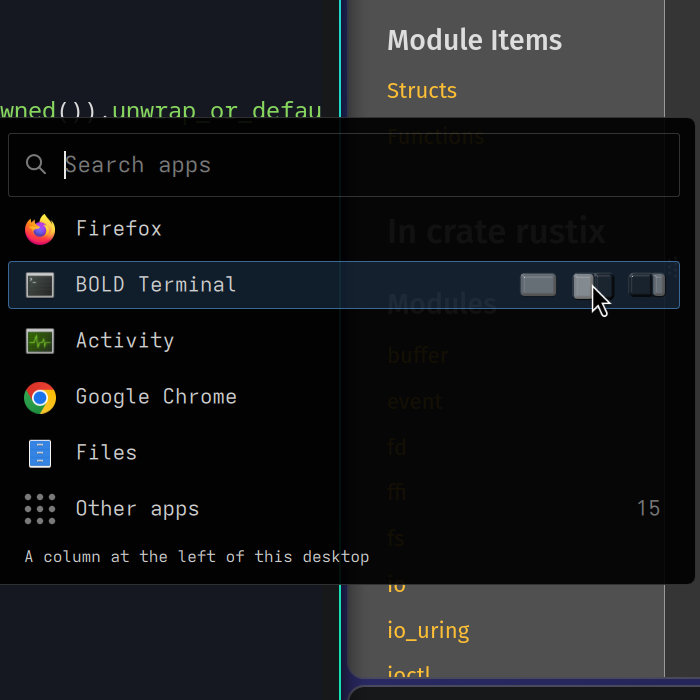 Each is a tiny desktop with the new window's place lit. Full screen: the app alone on an empty desktop. Left column, right column: a full-height column at that side of this desktop, the windows there making room. A click on the rest of the row opens the app as before. Any app can have a default of its own.
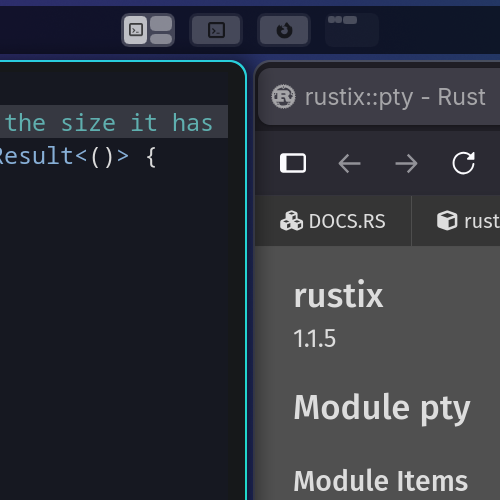
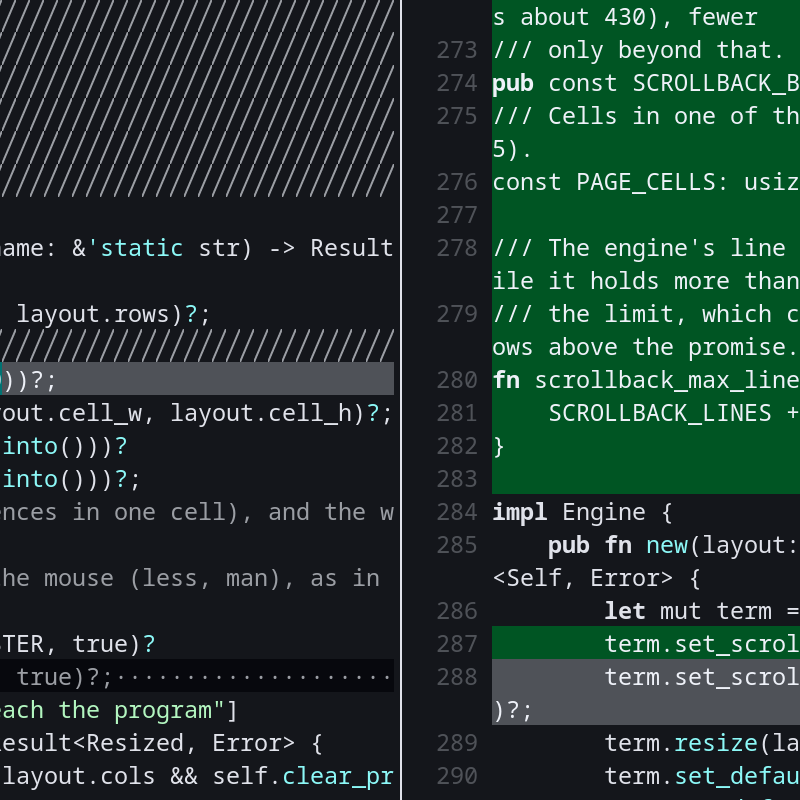 Code changes to review, side by side and full screen, on a desktop of their own. An agent runs
bold-reviewerwhen its work is ready, with a note on what changed and where to start reading. New to Vim? Noob mode lists the keys along the bottom.bold-reviewer- The card under it shows the fan's speed as it changes, and the little fan sits in a round frame while it's held. A boost only ever adds cooling, asks for no password, and ends on its own before the laptop sleeps or when the bar stops. On a Framework laptop.
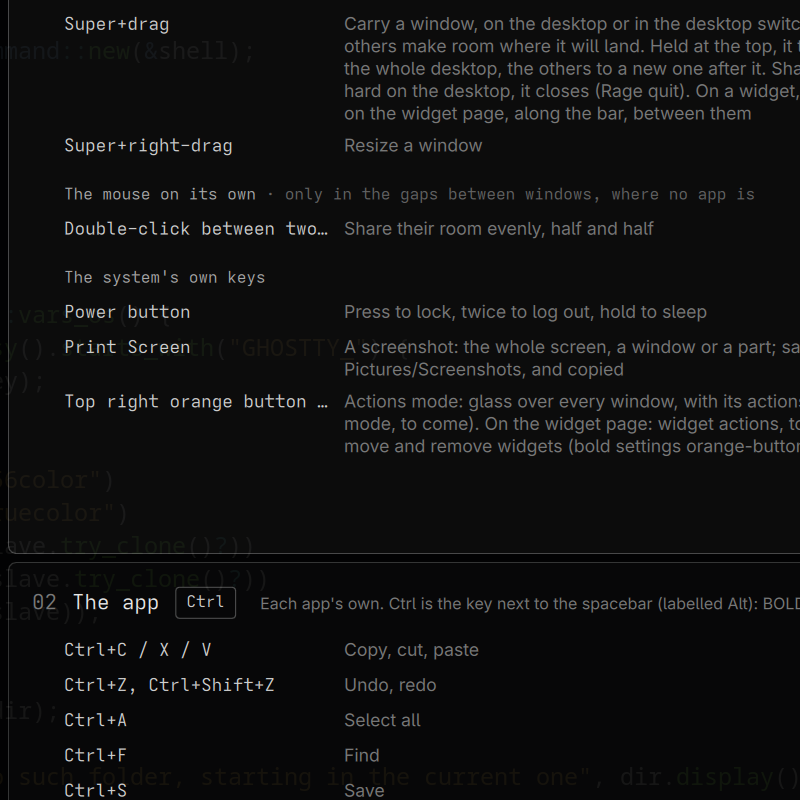 A window with the whole stack: the system's shortcuts (Super), read straight from what's bound, then what apps do with Ctrl, then a text field's keys, and Alt's menus, which BOLD never touches. Over SSH it prints the same stack.
bold shortcuts- Opt-in. F1 … F8, F11 and F12 also change the sound, the player and the brightness, take a screenshot and open actions mode, whichever way Fn-lock is set.
bold settings keyboard double-capture on - The switcher's last tile is always an empty desktop, marked with a small plus. Super+Right, the swipe and the wheel stop there, so going ten steps too far never takes ten steps back.
- Open actions mode and press the button in the middle of the bar's pane. Every window is copied onto a new desktop in the same arrangement (the same tiling and proportions, floating windows in place, a full-screen one full screen), then the view slides over to it. Apps that can't be copied are left out, and a notification says which.
- Arrange a desktop, open actions mode and press the small picture of its tiling: it's saved as a layout. On an empty desktop, actions mode shows your layouts; click one and its apps open, each window arriving in its place as its app starts.
bold layoutsrenames or deletes them.bold layouts - Within its desktop's tile the window moves in that desktop's layout; onto another tile (or the fresh one) it goes there, and you stay where you are. The tiles show where it will land as you drag.Super+drag in the bar
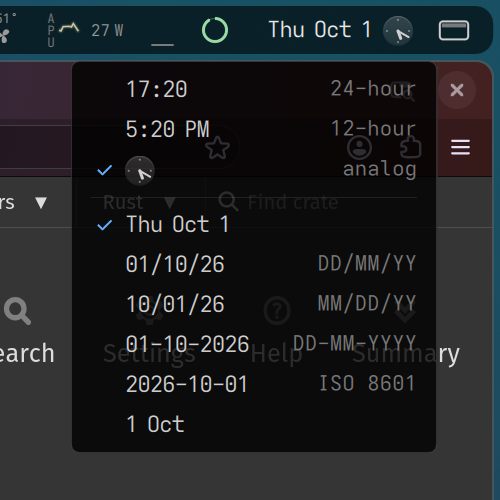 Scroll on the time to switch between
21:59,9:59 PMand a small analog face; scroll on the date for six formats, fromSat Sep 26to2026-09-26. Right-click either for a menu of them all, each shown as it would look now. The login screen follows your choice. The network graph has a thin level beside it: full on a cable, your Wi-Fi's signal otherwise, with a red dot when the internet can't be reached. A click on it opens the Wi-Fi settings.
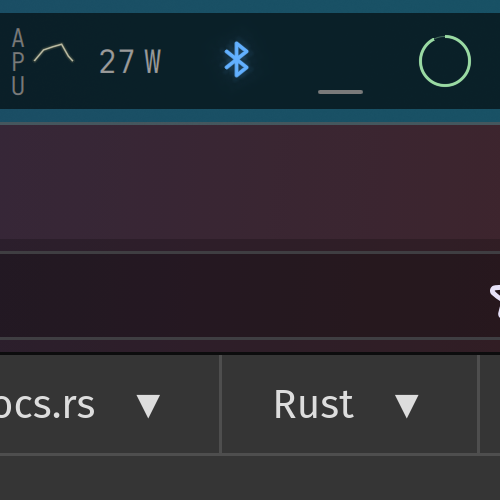 A small Bluetooth sign shows at the top right of the bar only while a pairing is happening, and a click on it answers the device's question. The rest of the time there's no Bluetooth icon.
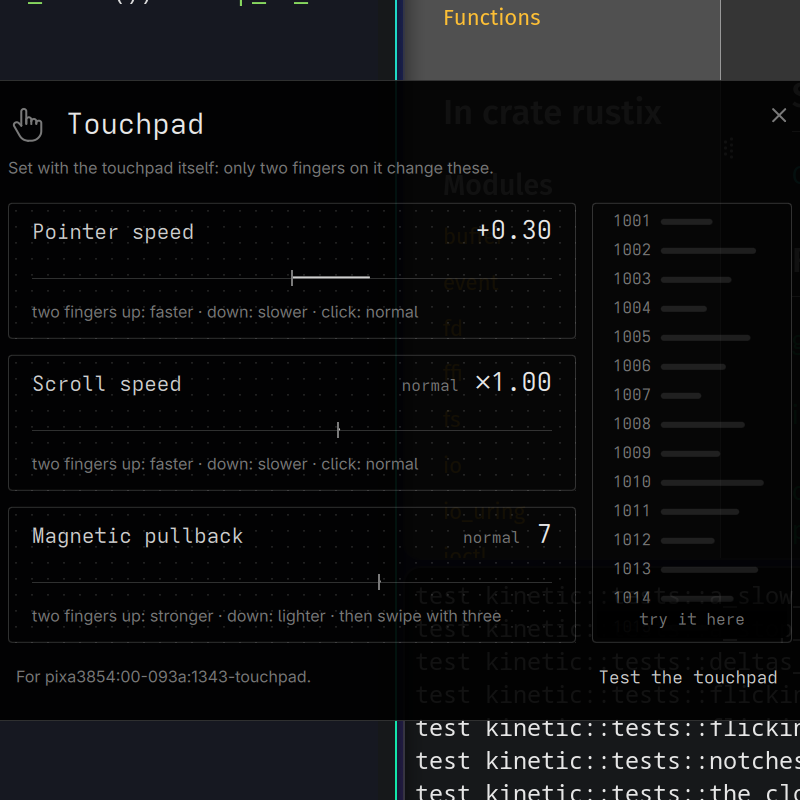 There's no settings panel. Type
bold settingsand the parts are listed; each opens a small window of its own over everything, gone again with a click beside it or Escape. Over SSH or in a terminal the same parts print where things stand and take a typed change.bold settings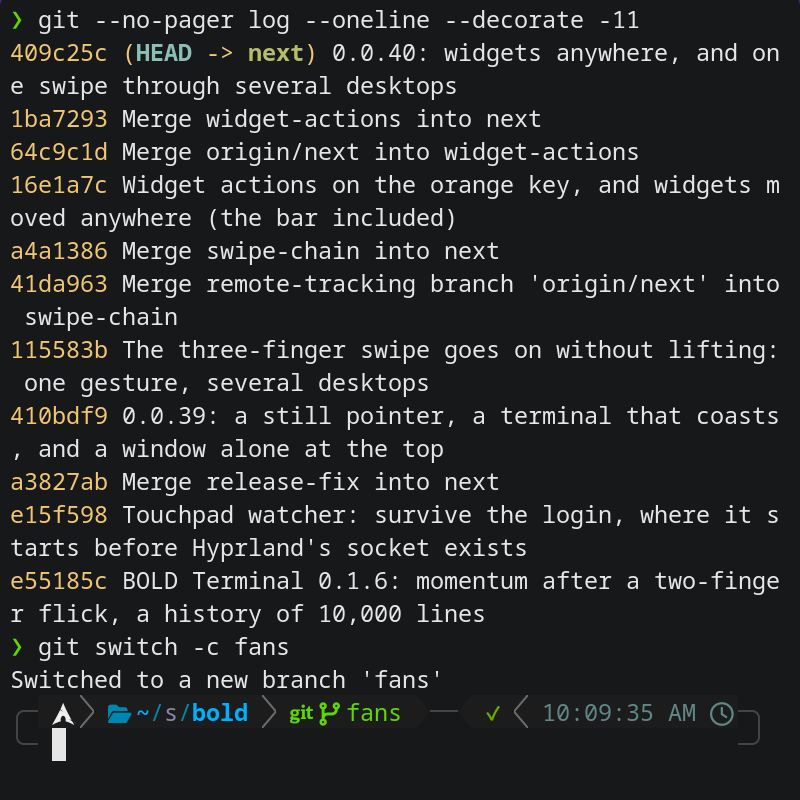 Every terminal opens into zsh with a framed two-line prompt: the Arch logo, the folder and git's status, drawn the moment the window opens. Nothing to configure, and the versions move only with BOLD's releases. A
~/.zshrcof your own is left exactly as it is.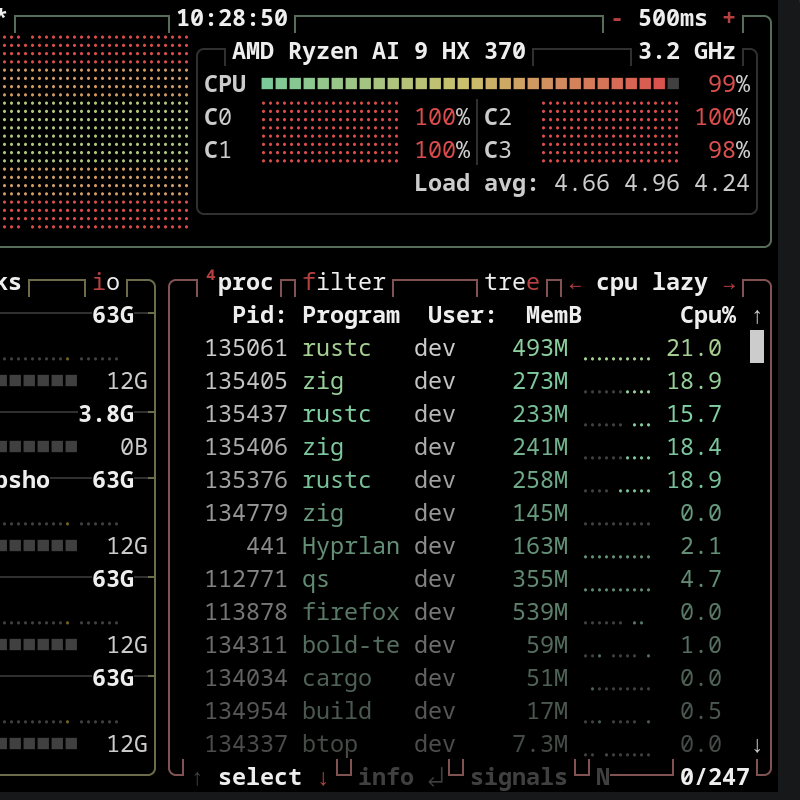 What's running and what it costs: processes, CPU, memory, disks and network. Tap Super, type "act" and press Enter; it opens full screen, alone on an empty desktop, and
qcloses it.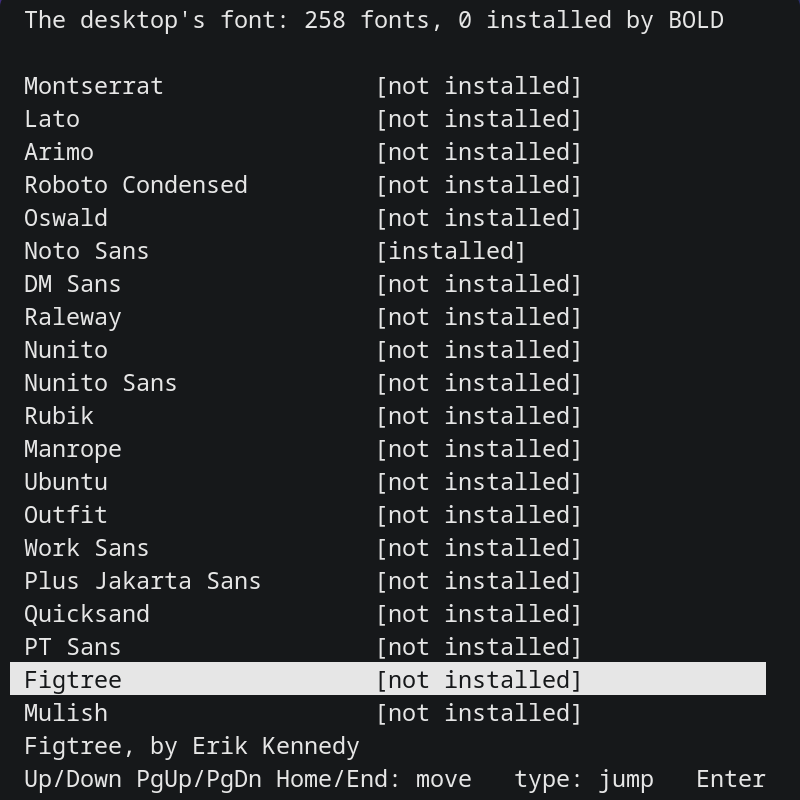
bold settings fontlists Google Fonts' UI families, most popular first. Press Enter and it downloads, installs with its licence and becomes the desktop's font at once: the bar, BOLD's windows, GTK apps and the default sans-serif. The monospace font stays as it is.bold settings font- When a window is the only one on its desktop it obviously has the keyboard, so its outline and shadow are gone. They fade back in as soon as a second window, a dialog included, joins it.
- The bar, the desktop tiles, the launcher, BOLD's windows and the sidebar are placed on whole pixels at the 13 Pro's fractional scale, so no edge falls between two pixels and softens. The text is spaced on whole pixels too.
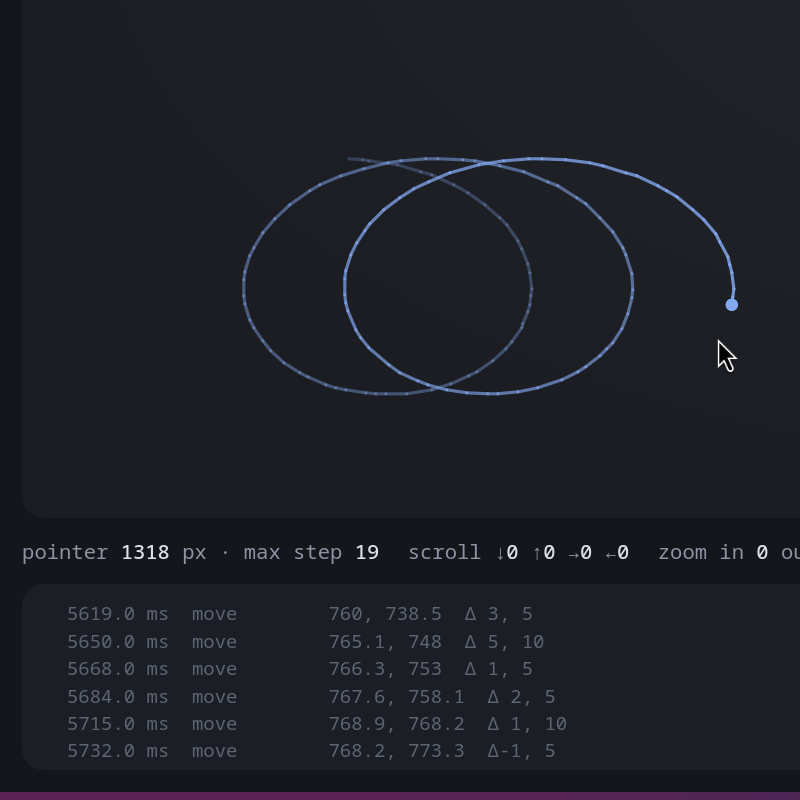 Moving, scrolling, pinching, the three-finger swipe, clicks and drags, with and without a thumb resting on the pad, each judged as you do it, with the pointer's path and every event drawn live. It opens in your browser, and nothing leaves the page.
bold settings touchpad test- The speakers play through Framework's own tuning for them, from its Windows driver: the boxy hump around 500 Hz and the sharp peak around 4 kHz are taken down. Headphones, HDMI and Bluetooth play as before.
bold speakers offplays them raw, to compare.bold speakers 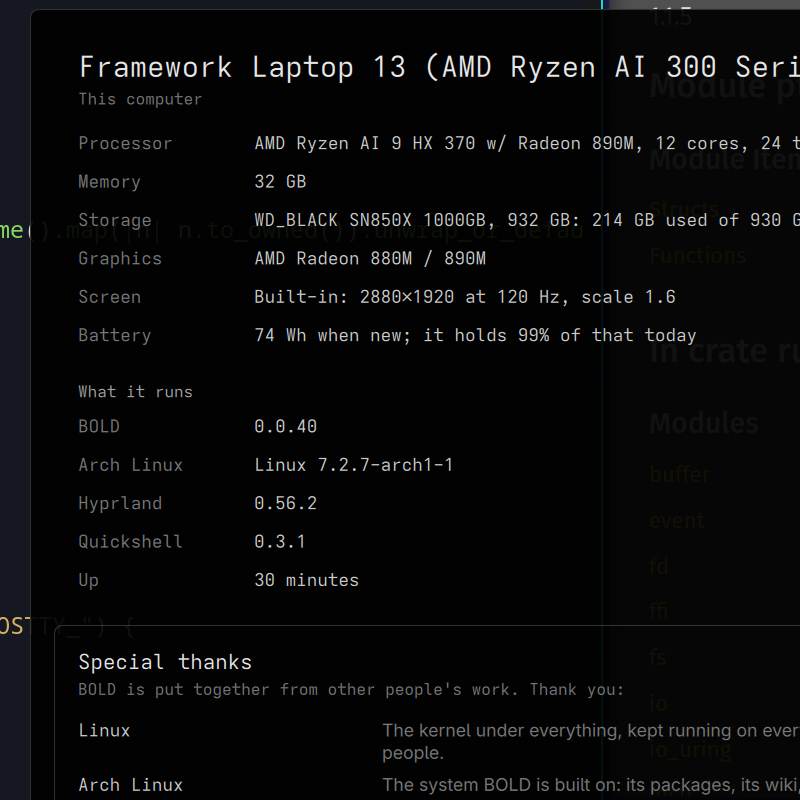 A window with your machine's model, processor, memory, storage, graphics, screens and battery, and what it runs: BOLD, Arch and its kernel, Hyprland, Quickshell. Below, a special thanks to the projects BOLD is built on, each a click away.
bold system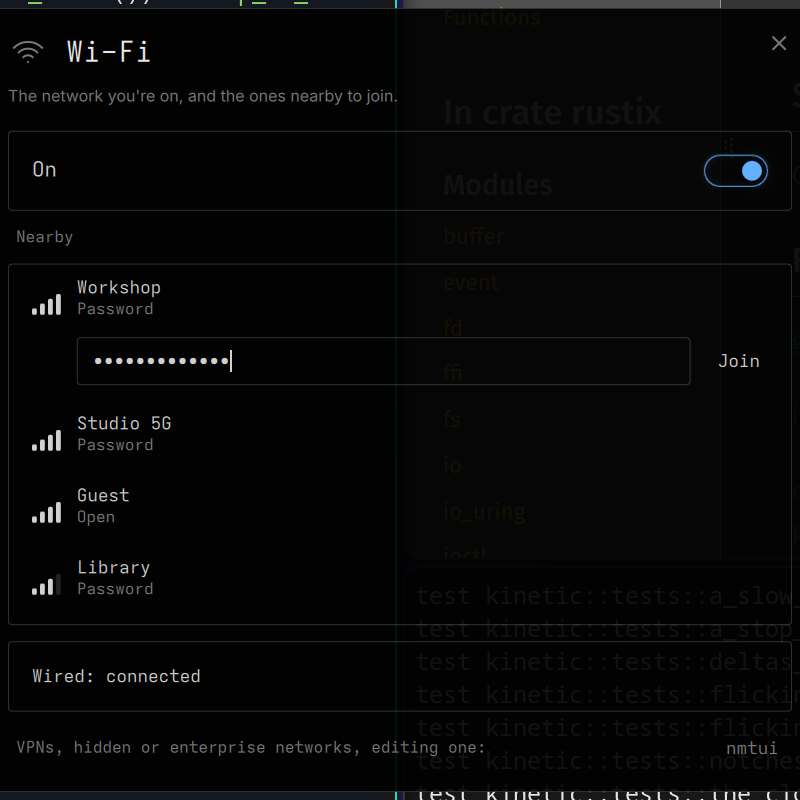 Wi-Fi on or off, the network you're on with its signal, and the networks nearby, saved ones first. A secured one asks for its password right in its row, and says so if it's wrong. VPNs and enterprise networks are one click away, in nmtui.
bold settings wifi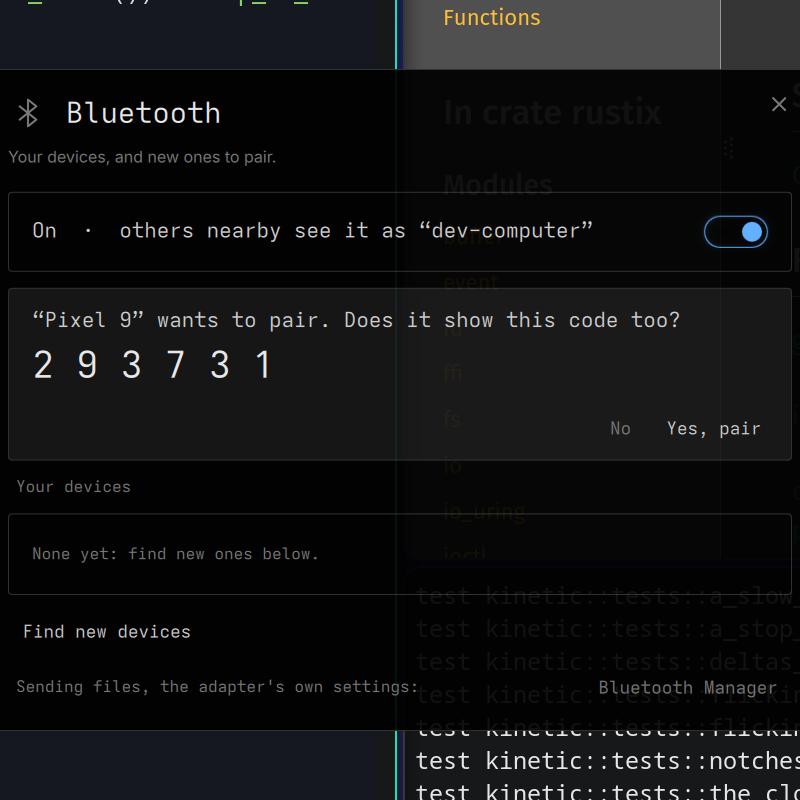 Bluetooth on or off, your devices (connected first, with their battery where they report one) to connect, disconnect or forget, and new ones nearby to pair. A device's code or PIN question shows right there, answered by BOLD's own pairing agent.
bold settings bluetooth- A folder in
~/.config/bold/plugins/can hold Lua that runs inside Hyprland and QML that runs inside the bar, with the same access as BOLD itself. A broken one is named and left out while everything else carries on, and updates never touch them. - BOLD's own files live in
~/.local/share/bold, and your choices in~/.config/bold, so nothing of BOLD's shows in your home folder. Updating moves an old~/boldthere by itself. - BOLD Terminal and BOLD Reviewer are packages built once for each release, instead of compiling on your machine for minutes with nothing on screen.
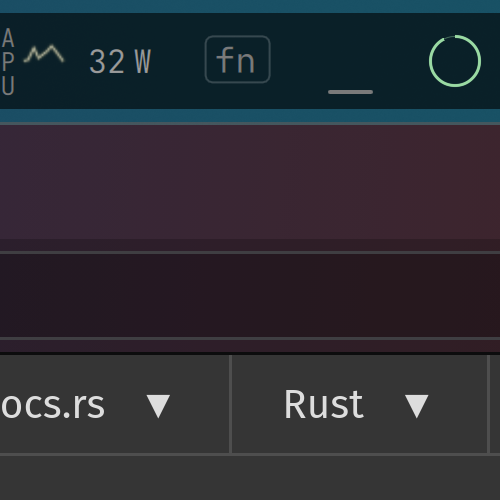 The keyboard never says whether Fn-lock is on, so BOLD tells from the last top-row key you pressed, and shows a small "fn" at the left of the tray. Nothing shows until a top-row key has been pressed once.
- After logging in, and every time you unlock the screen with a password or a finger, the command bar at the top left has the keyboard, so you can type a command straight away. Esc, or a click on a window, gives the keyboard back. It stays out of the way while a full-screen window is up.
- On a laptop with a charge limit, the battery reads full at the limit. Where the firmware keeps the limit to itself (the Framework 13 Pro), BOLD learns it by watching the battery hold still on mains, and says it doesn't know until it does.
- A card drawn at the battery's real charge with the limit marked on it, what it's doing (full, charging with the time to full, on battery with the time left, the watts), its health against its design, charge cycles, chemistry, maker, and the last 8 hours of charge.
- Copy is Ctrl+C and paste is Ctrl+V, and that's the only clipboard: Linux's second one (PRIMARY) doesn't exist in BOLD. A password you selected is never one stray click from landing in the wrong window. A middle-click still opens a link in a new tab.
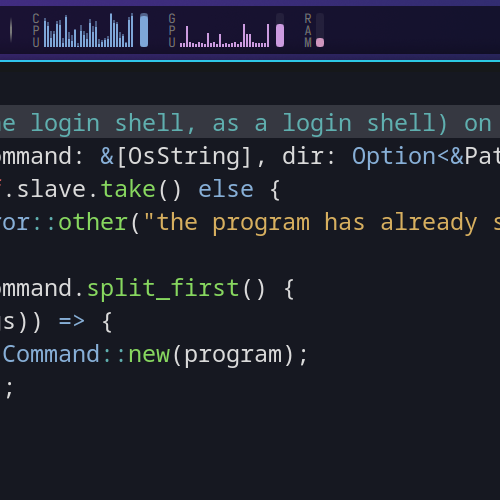 In the spirit of iStat Menus: small graphs drawn as bars, one a second, in wings either side of the desktop switcher. Tight memory or a hot chip turn amber, then coral. Rest the pointer on a wing for its details; the numbers never shift as they change.
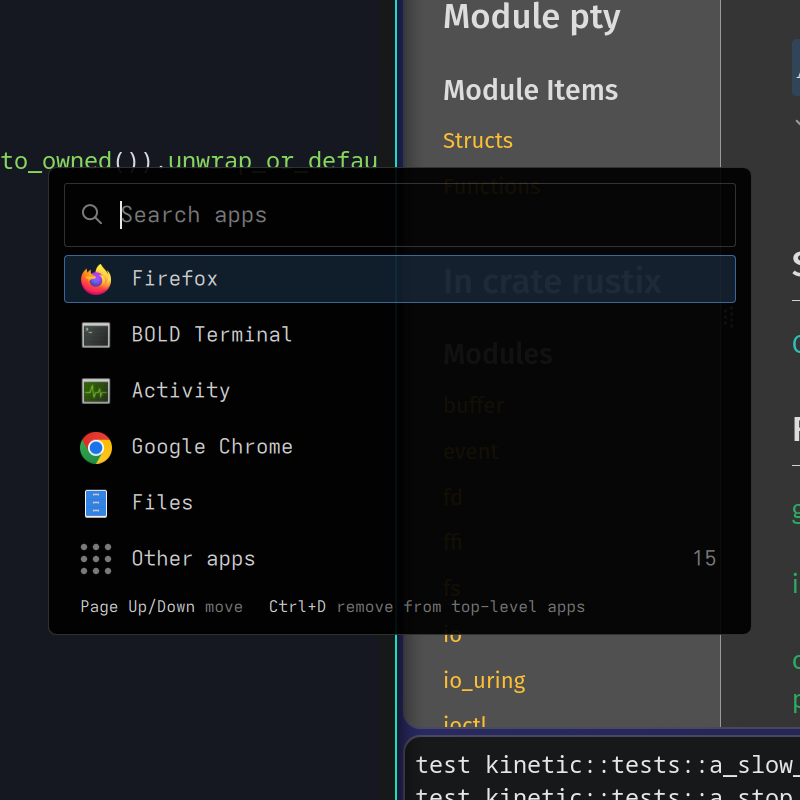 A search bar over the apps you reach for every time; everything else waits under Other apps. Ctrl+D adds the chosen app to the top level or takes it back out, and Page Up and Page Down move it. A terminal app can be one too. BOLD's own apps come first in the search.
- Start typing, in a terminal, a browser or the command bar, and the mouse pointer disappears. It comes back a second and a half after you stop, or as soon as you move the mouse. Shortcuts and modifier keys on their own never hide it. A two-finger scroll leaves the pointer where it was and hides it while you scroll, as on a Mac.
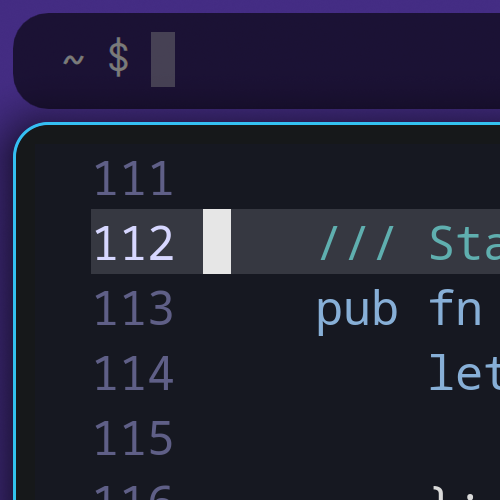 The BOLD bar floats like a window, rounded like them, with the same 4 px gap as between windows. The gap belongs to it: fling the pointer to the top edge and click, and you hit the bar, as on macOS.
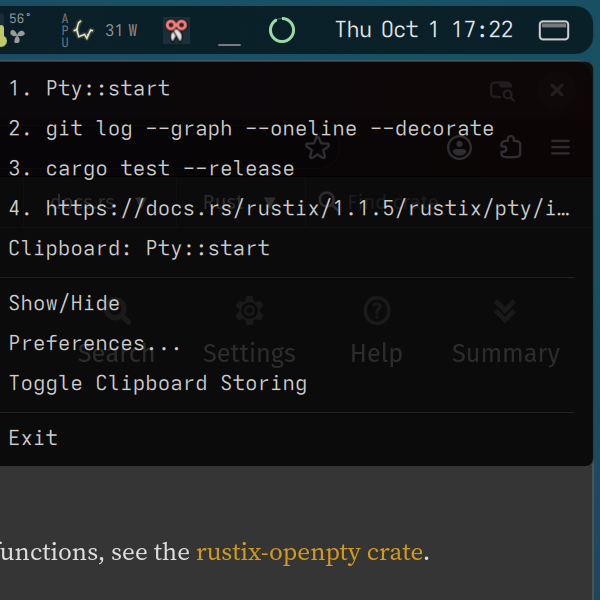 The tray's menus keep the apps' own entries, ticks, icons and submenus, drawn dark and rounded like everything else, and the keyboard works in them.
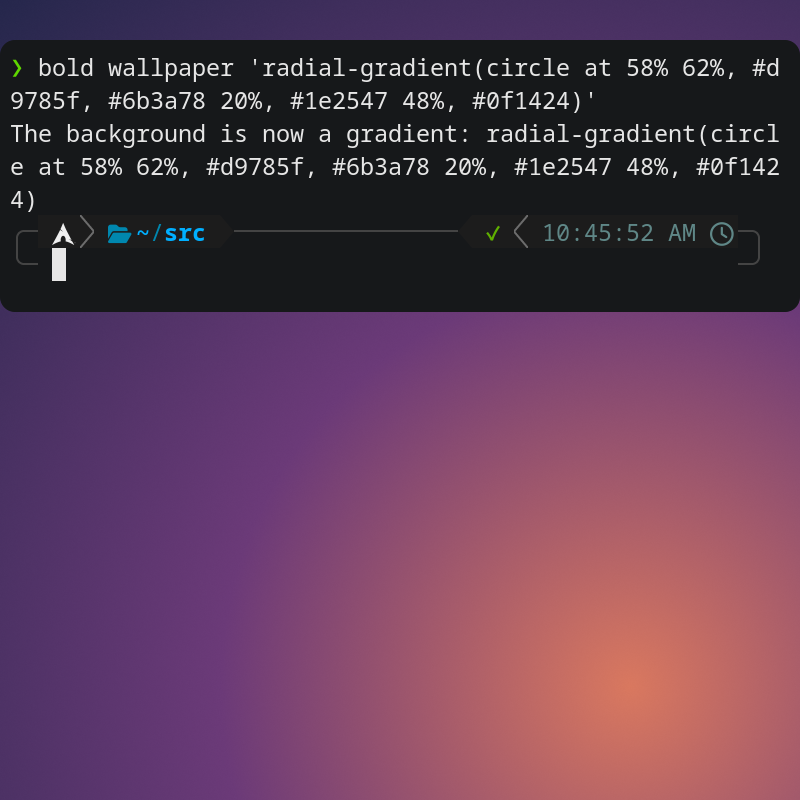
bold wallpaper '#1b2320', a gradient written like CSS, oranimated, which drifts slowly and holds still when it can't be seen and on battery. A still background costs nothing once drawn.bold wallpaper- The same small gap runs between windows, at the screen's edges and around the bar, so the screen is used but nothing touches.
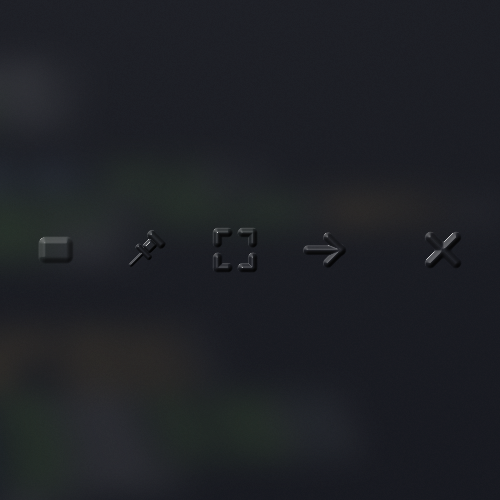 In actions mode the middle of every window's glass has Float, Full screen, Move to a new desktop and Close. Each rises out of the glass, and moves the way its action goes when you point at it. Actions mode stays on after one, so you can do several in a row.
- In actions mode, the pin button makes the window float and stay with you as you move between desktops. The pin is pushed in while it's pinned; press it again to put the window back into the tiling.
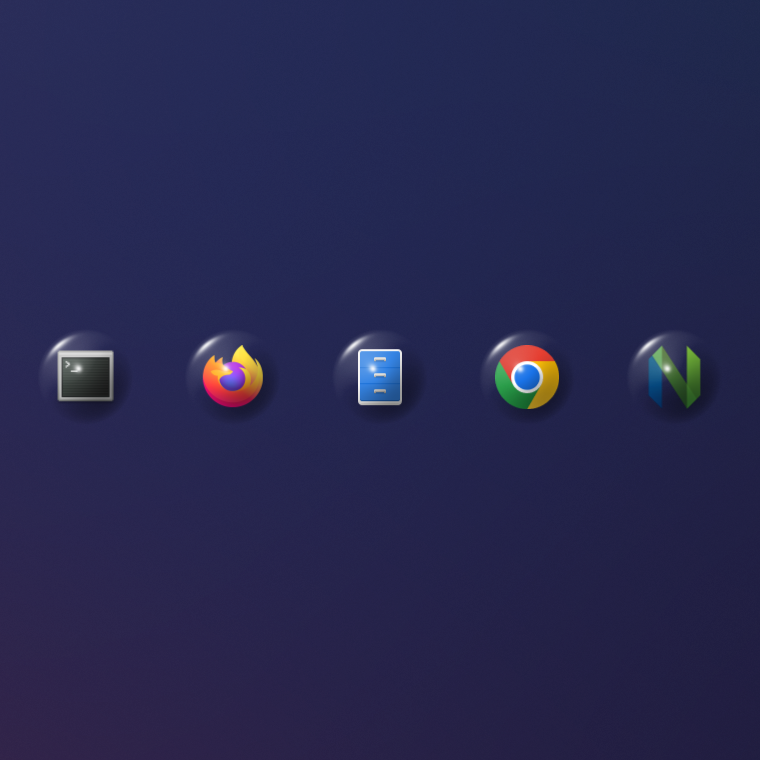 On an empty desktop, actions mode offers the apps you've used most in the last few days, each under a drop of glass: click one to open it there. BOLD counts which apps you use only on your machine.
- Pick a window up with Super+drag and turn the wheel to the desktop it should go to, or hold it at the screen's left or right edge: light gathers, and after a moment the next desktop slides in under the window. Let go and it lands, tiled.Super+drag to the edge
- Only a tap: holding Super, or using it with another key, the wheel or a drag, never opens it. It opens at once, with no wait for a second press.Super
bold updateasks for your password once, before anything changes, and never again during the update.- Drag the gap between two windows and both sides resize, with one double-headed cursor whichever side of the gap you're on. Along the screen's edges, where dragging can't resize anything, the cursor stays a plain arrow.
- Moving the pointer over a window doesn't make it active; a click does, and that first click still goes through, unlike macOS. Scrolling reaches whatever is under the pointer, so you can scroll a web page while you keep typing in a terminal. The active window has a thin outline and a light shadow, so it looks slightly raised.
boldquestions ignore keys typed before the question appears, and ask again when the answer isn't yes or no, so a stray key never counts as no.bold autologinturns automatic login on or off. With an encrypted disk, the disk's passphrase at boot takes you straight to the desktop. It warns you first if the disk isn't encrypted.bold autologin- The power button never turns the machine off by accident. One press locks the screen, two log out, and holding it for 1.5 s puts it to sleep while a level fills in the bar. At the login screen a press sleeps. Holding it for several seconds still forces a power-off.
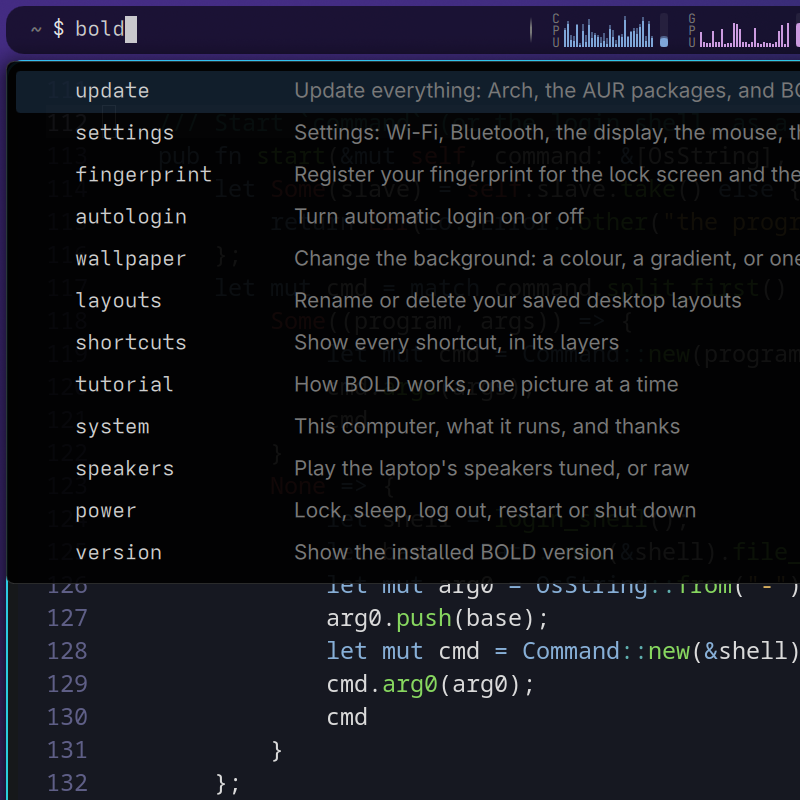 Type
boldin the command bar and a list shows every top-level command: update, power, settings, tutorial and the rest. Up and Down choose, Tab or Right completes, Enter or a click runs. Each is the tip of an iceberg, named for what you'd look for. In a terminal,boldon its own is the help page.bold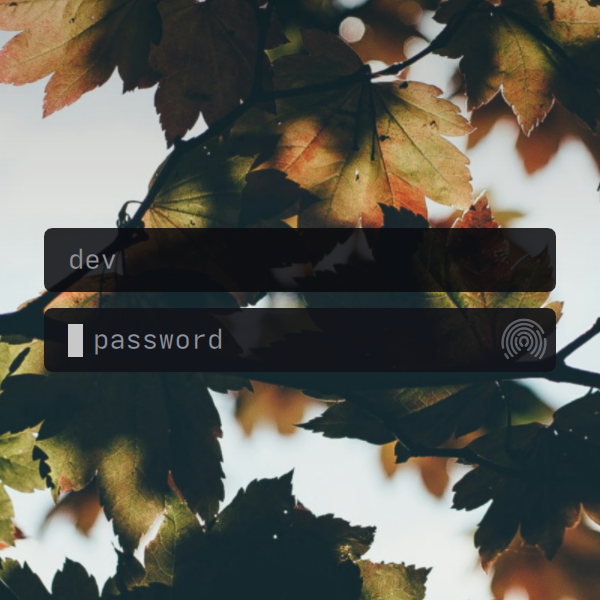
bold fingerprintregisters a finger, and the lock and login screens take either. A small fingerprint sits beside the password: touch the reader and its ridges fill with colour as the finger is read.sudostill asks for the password.bold fingerprint- Both are there from the first login, ready to sign in to, and Claude Code keeps itself up to date. Tools you install for yourself in
~/.local/binjust work. 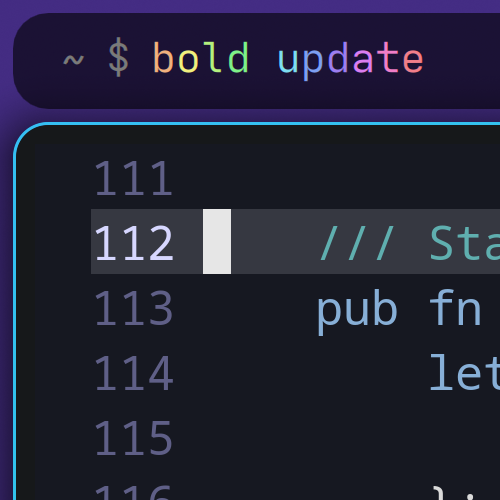 BOLD checks for a release about once an hour and gets it ready, then the command bar offers
bold updatein moving rainbow colours. One click runs it in a terminal, where you see what's new, say one yes, and it's done. Your own Arch updates stay yours: BOLD never nags about them.bold updatebold updateis the only update there is: each run brings Arch (pacman -Syu) and your AUR packages up to date, then installs BOLD's newest release if one is waiting. Before its one question it says what's waiting, so you never end up with a partial upgrade.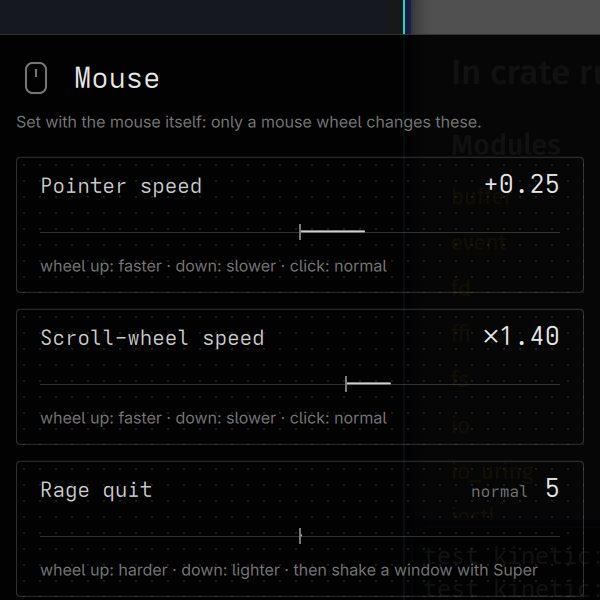
bold settings mouseandbold settings touchpadeach open a small window with pads to scroll on, and a list beside them that moves with every step. Only the device itself can change them: a mouse wheel in the mouse's window, two fingers in the touchpad's. A click on a pad puts it back to normal. Before the windows, the bar had two small controls for the pointer's speed.bold settings mouse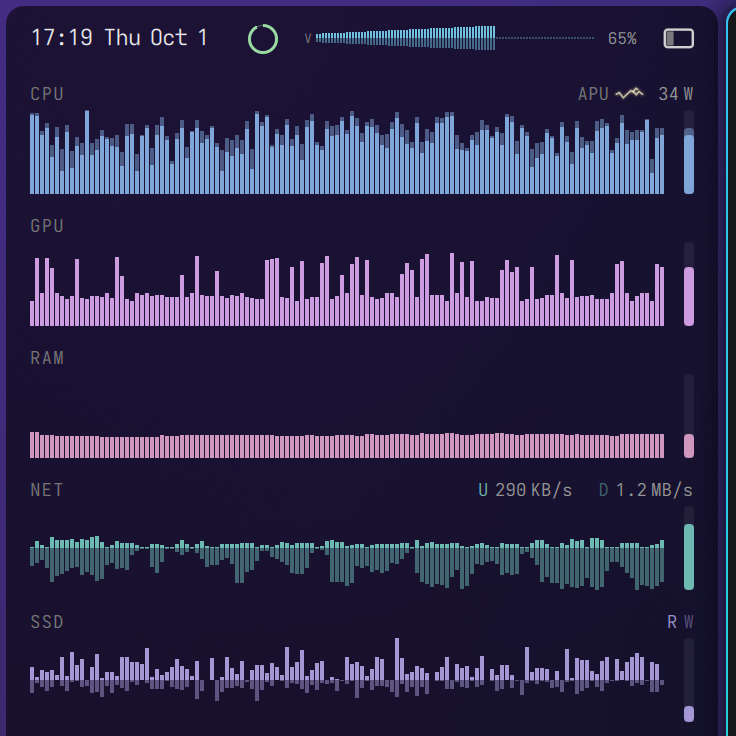 Volume and brightness keys show a level in the bar, never a pop-up in the middle of the screen: a row of mirrored bars raised as far as the level, in the place of the CPU, GPU and RAM graphs for a moment. A mute lays the bars down. In the sidebar it takes the top row's fan and temperature; on other desktops a thin sliver at the top edge shows the same bars.
- The key next to the spacebar works like macOS's ⌘: Ctrl+C copies, Ctrl+V pastes. Right Alt is untouched. It's one XKB option in the compositor's keyboard config, and in BOLD "Ctrl" always means the key labelled Alt.Ctrl+C · Ctrl+V
- Tap-to-click is off. On the Framework's haptic touchpad, a click is a press, and a light tap that lands by accident is ignored.
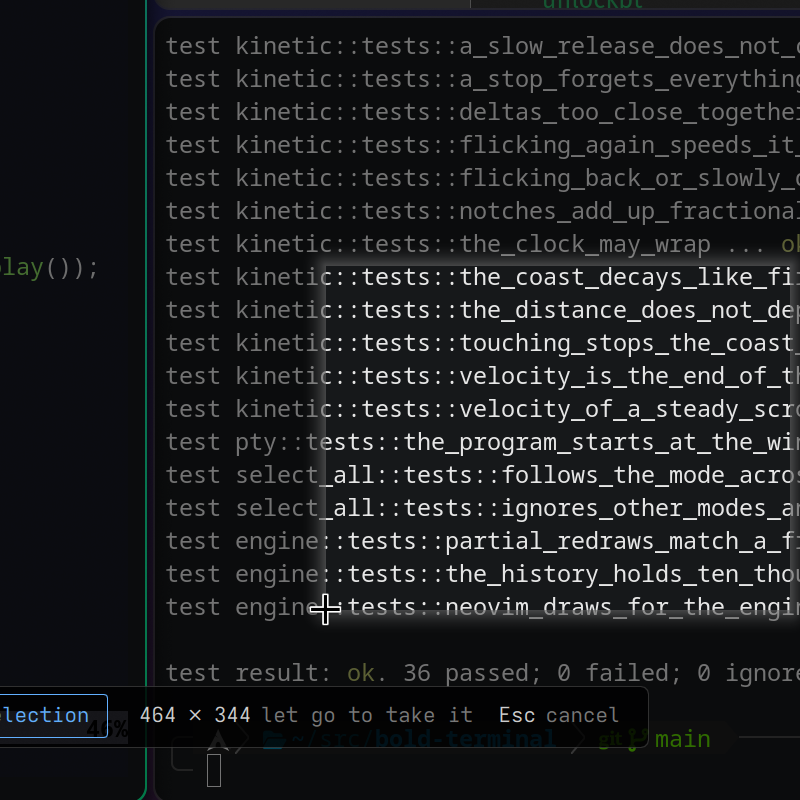 Print Screen (the 13 Pro's F11) freezes and dims the screen, with a bar at the bottom: Full screen, Window, or Selection to drag out a part. The picture is saved in Pictures/Screenshots and put on the clipboard, ready to paste, and a notification opens it in Files. The mode you chose last comes back next time.Print Screen
- The top-row media keys control whatever is playing, and the microphone key mutes the mic.
- Locking never stops anything, it only covers the screen. Super+L locks at once, and the power button's single press does the same.Super+L
- Each monitor has a row of desktops you move through left and right, like GNOME. Inside each one, windows tile however the task needs: a 2×2 grid, one full-screen window, two columns, or nothing at all. Super+scroll moves along the row too.Super+← / →
- The window moves to the desktop on the left or right, and you can follow it. It stops at the fresh desktop at the end of the row.Super+Shift+arrows
 Hold Super and drag anywhere on a window. A place marked in blue holds its place in the tiling and the other windows move aside as you go, so you see the new layout before you let go. Picked up and put back, nothing moves. Super+right-drag resizes a floating window.Super+drag
- Firefox and Google Chrome are the browsers, Files (Nautilus) the file browser, and Ghostty a second terminal for anyone who prefers it.
- The Framework Laptop 13 Pro's screen runs at 1.6× (1800 × 1200 logical), which divides it exactly so text stays crisp. Any other screen gets its preferred mode and an automatic scale.
- On battery, the screen dims and the keyboard light goes out at 10 minutes, the screen locks at 20 and the machine sleeps at 40. It always locks before sleeping.
- On power it locks after an hour and dims after two, but never turns off or suspends. Locking only covers the screen; it never stops anything.
- A fresh Arch install becomes the full system: one script installs the packages, links the config and enables the services. It's safe to run again, and asks for your password once.
Hardware support
BOLD is tuned specifically for the Framework 13 Pro and its hardware. Anyone who wishes to add support for other hardware may do so, and can get in touch to be added to this list.
| Device | Maintainer |
|---|---|
| Framework 13 Pro | briiian |
Join the community
Questions, tips, and what you've built with BOLD: the community lives on itsasmall.world.
BOLD's community itsasmall.world/c/bold